The dashboard
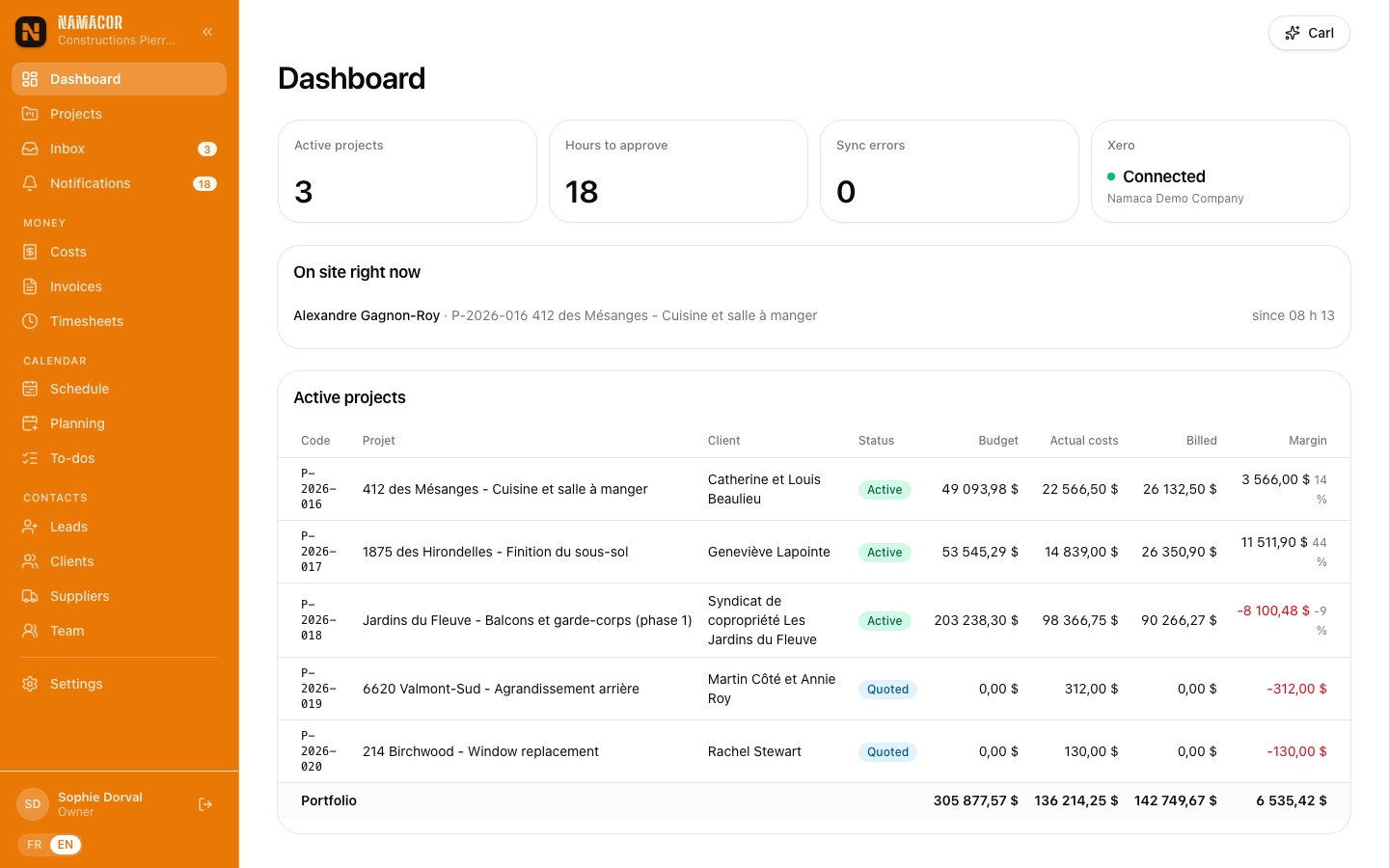
When you open NamaCor you see at a glance what needs your attention: hours to approve, Xero sync errors, who is on site right now and, for every active project, the budget, actual costs, billed amount and margin.
Finding your way
- The left menu groups the screens: Money (costs, invoices, timesheets), Calendar (schedule, planning, to-dos) and Contacts (leads, clients, suppliers, team). Badges show what is waiting: documents in the inbox, unread notifications.
- The Carl button, at the top right of every office page, opens the assistant (see section 6).
- The FR | EN switch, at the bottom of the menu, changes the interface language. The choice follows your account on every device.
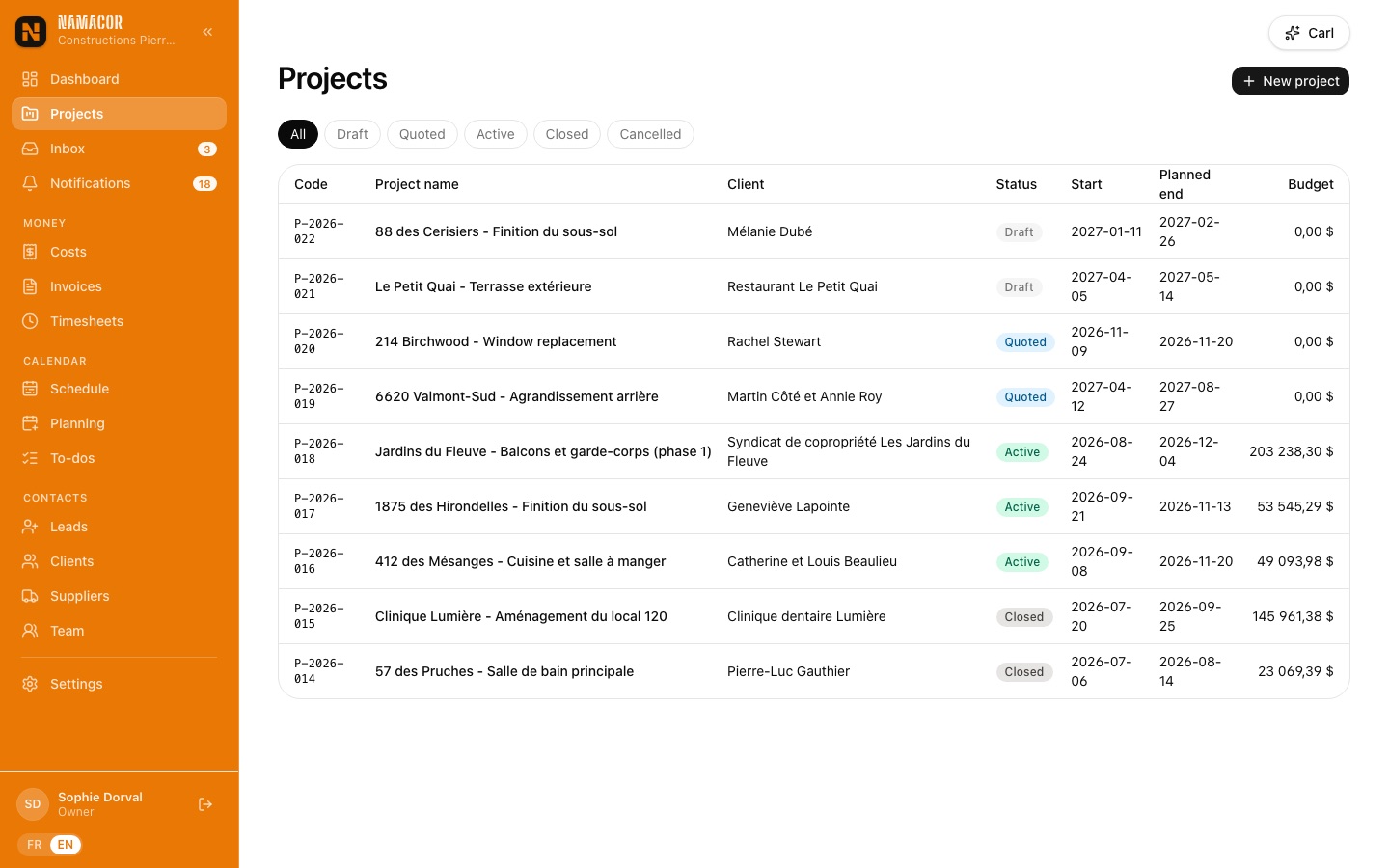
- Each project has a code (P-2026-016) and its tabs: Summary, Finances, Quote, Costs, Time, Daily log, Schedule, To-dos, Invoices, Change orders, Purchase orders, Bid requests, Reports, Selections, Files, Events, Team.
From the request to the signed quote
A request comes in from your website, becomes a project in one click, gets a detailed quote whose margin you know line by line, and the client approves it online. The project then turns Active and its budget is set.
Never lose a request againLeads and the public form
Every company has a public quote-request form that needs no account. Put its link on your website, email signature or Facebook page (Settings › Company, or at the top of the Leads page).
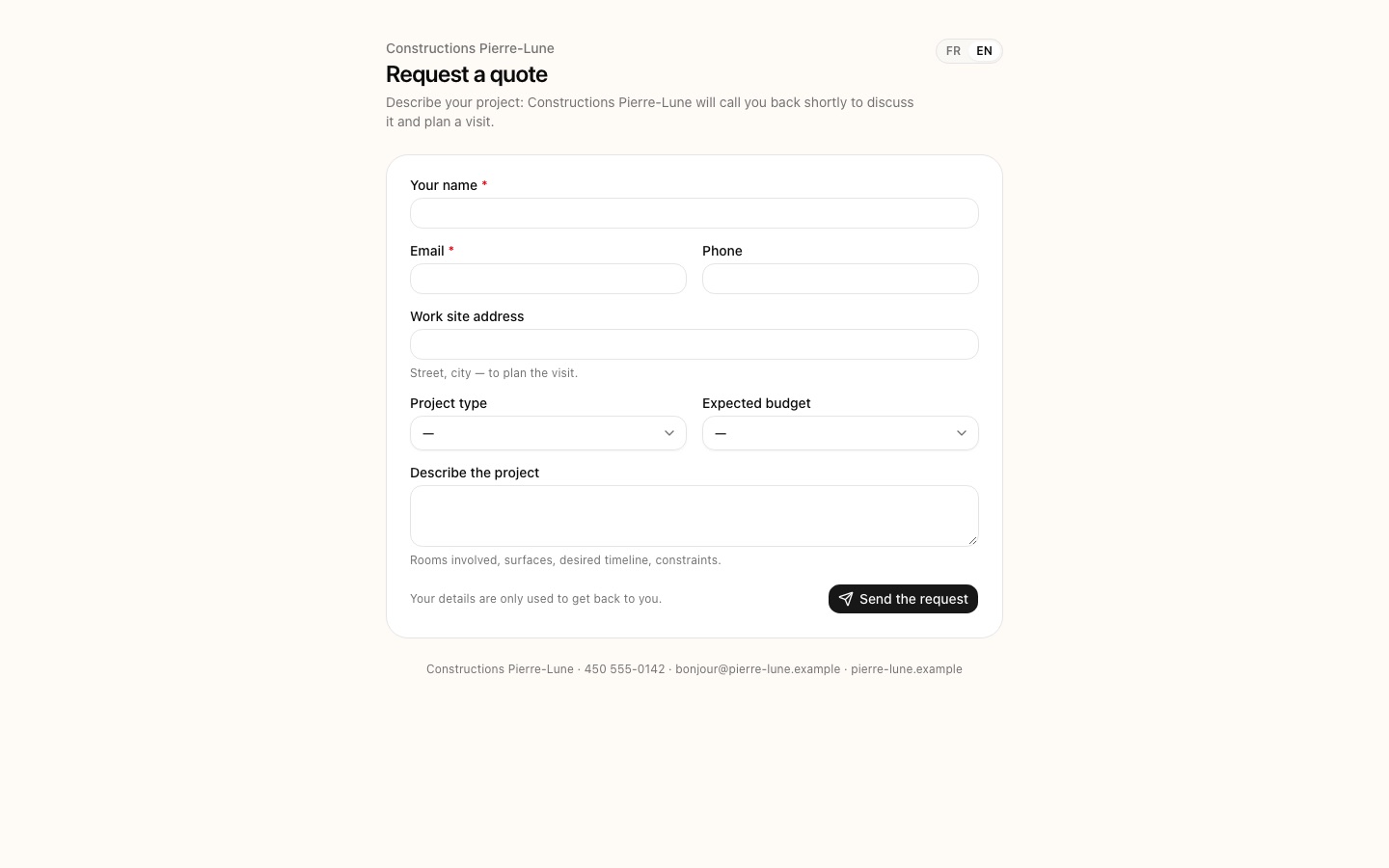
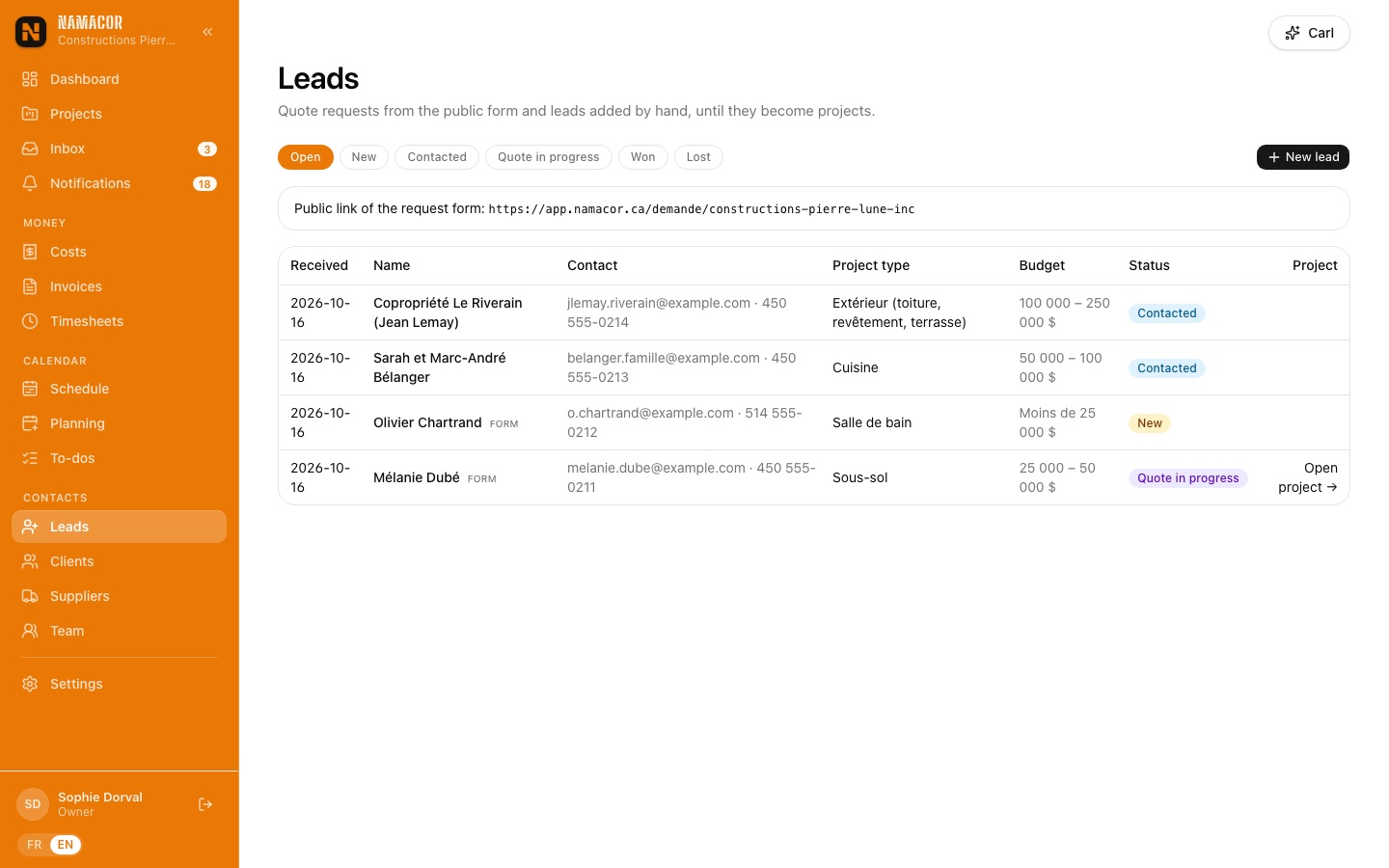
- Open Leads. Form requests arrive on their own; New lead adds a phone call or a referral.
- Move the status along: new → contacted → quote in progress → won or lost. Keep your calls and visits in the internal notes.
- When the job firms up, click Convert to project: the client is found by email or created, and a draft project opens, ready for the quote.
All contact details in one placeClients
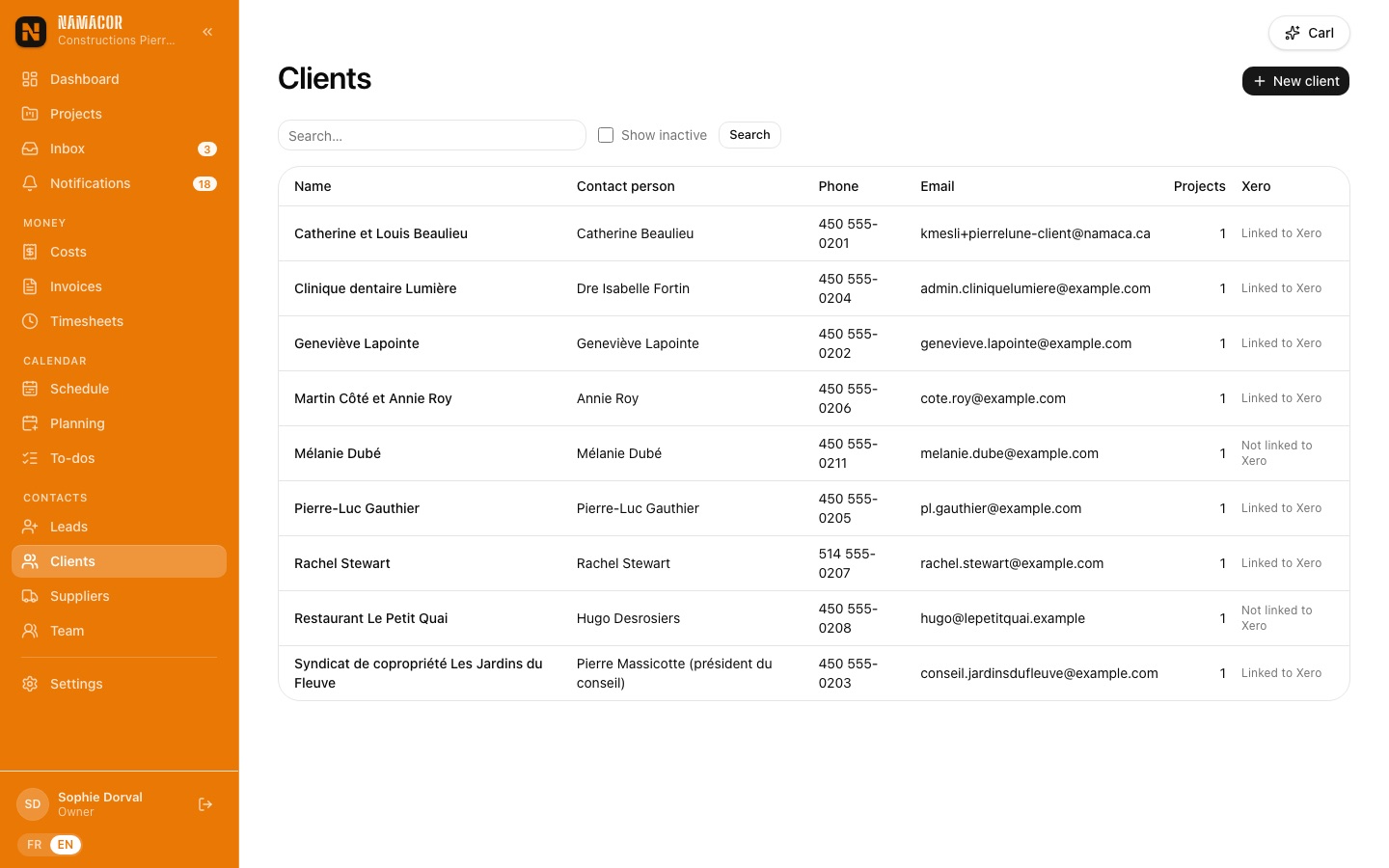
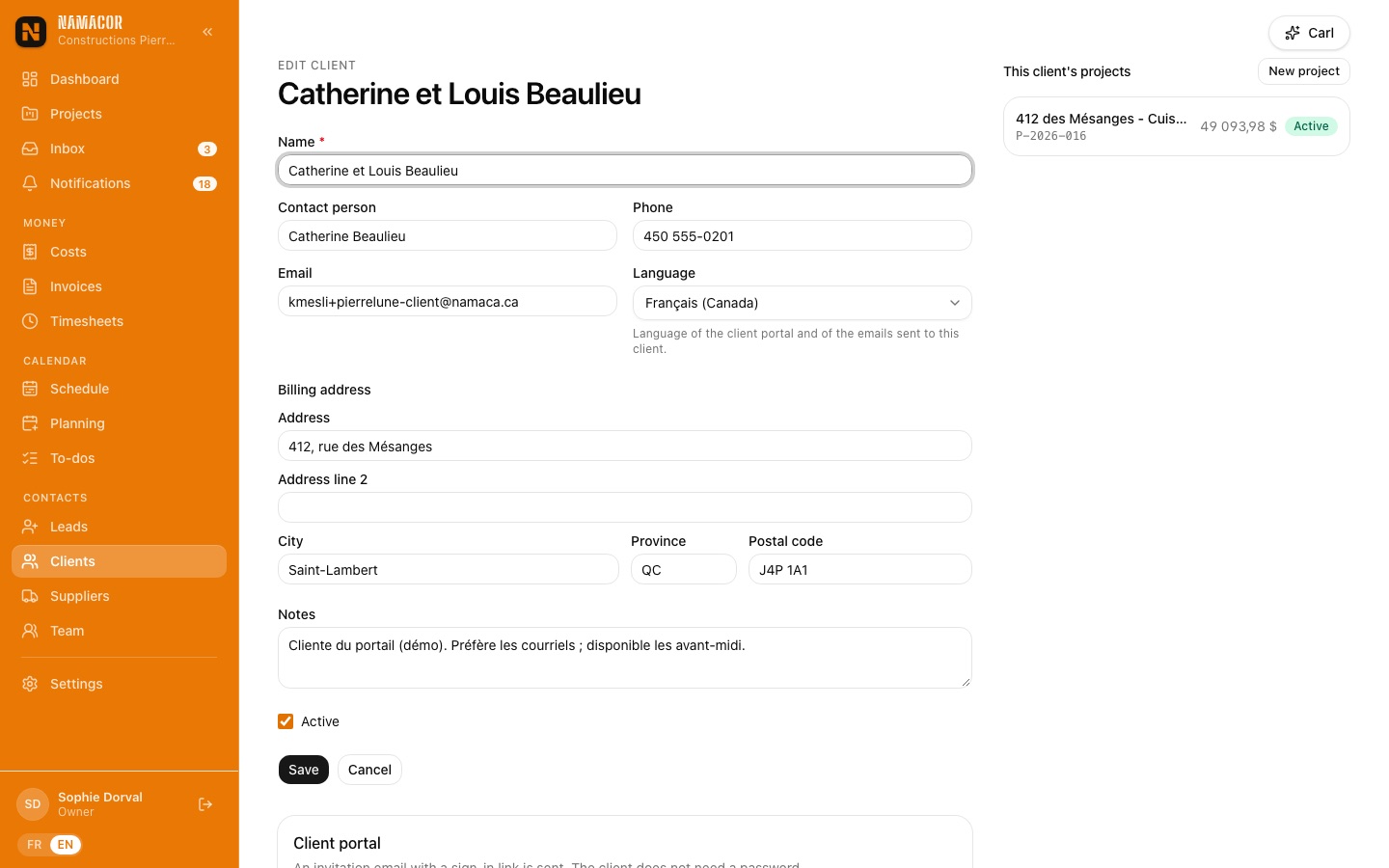
The client record keeps contact details, billing address, the client's language (emails and the client portal follow it) and their projects. It is also where you invite them to the client portal.
Price fast, and know your margin before you sendThe quote
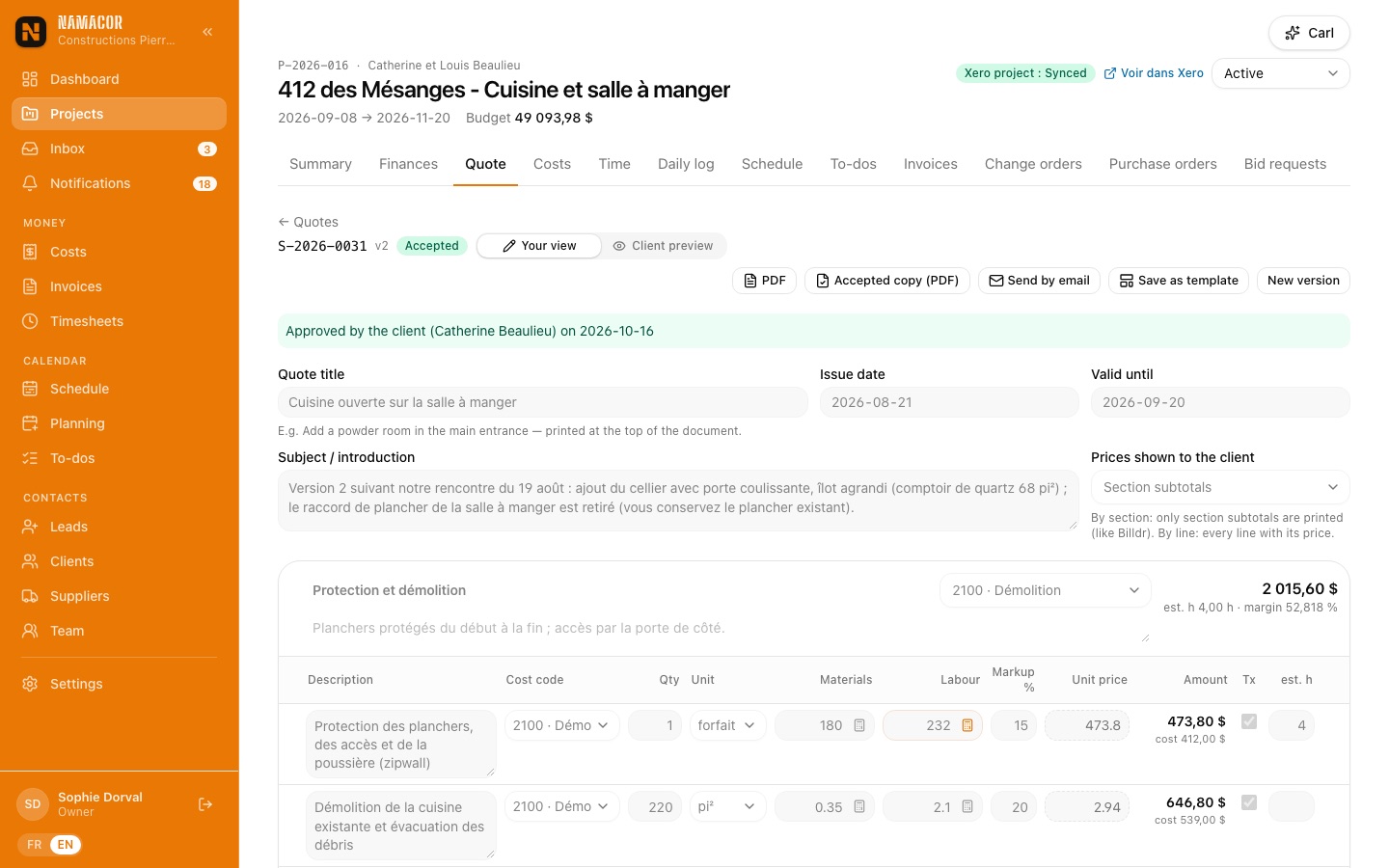
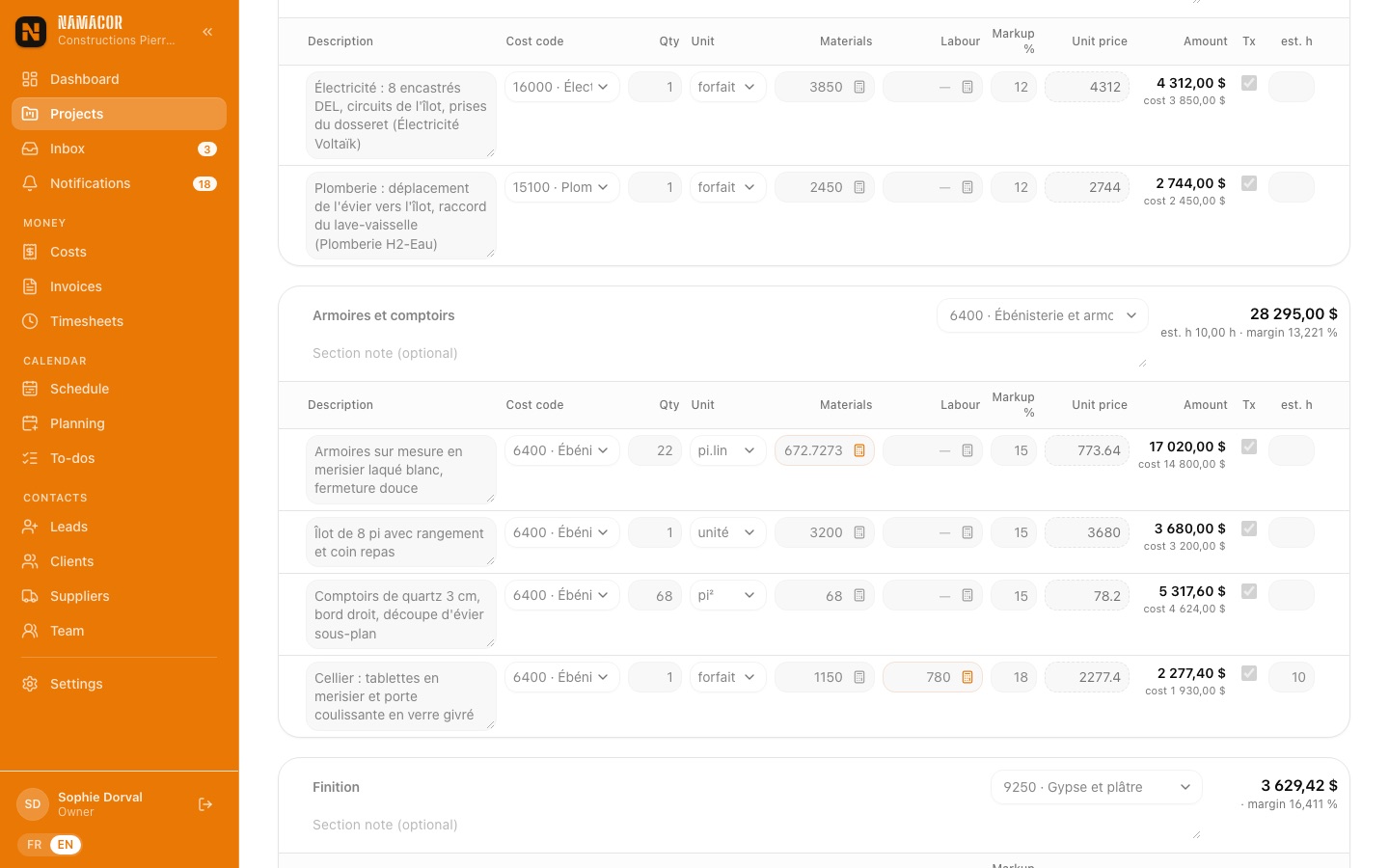
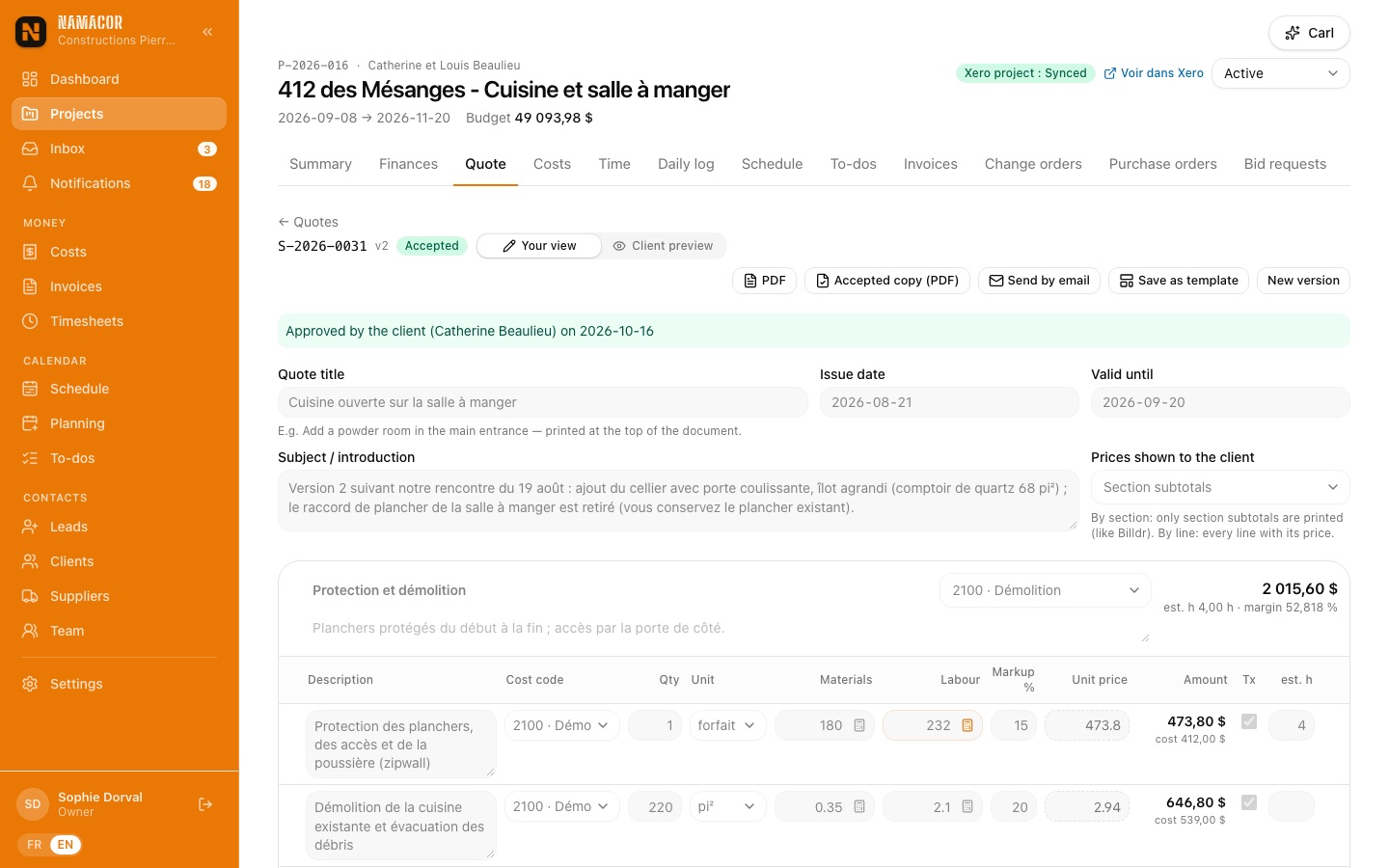
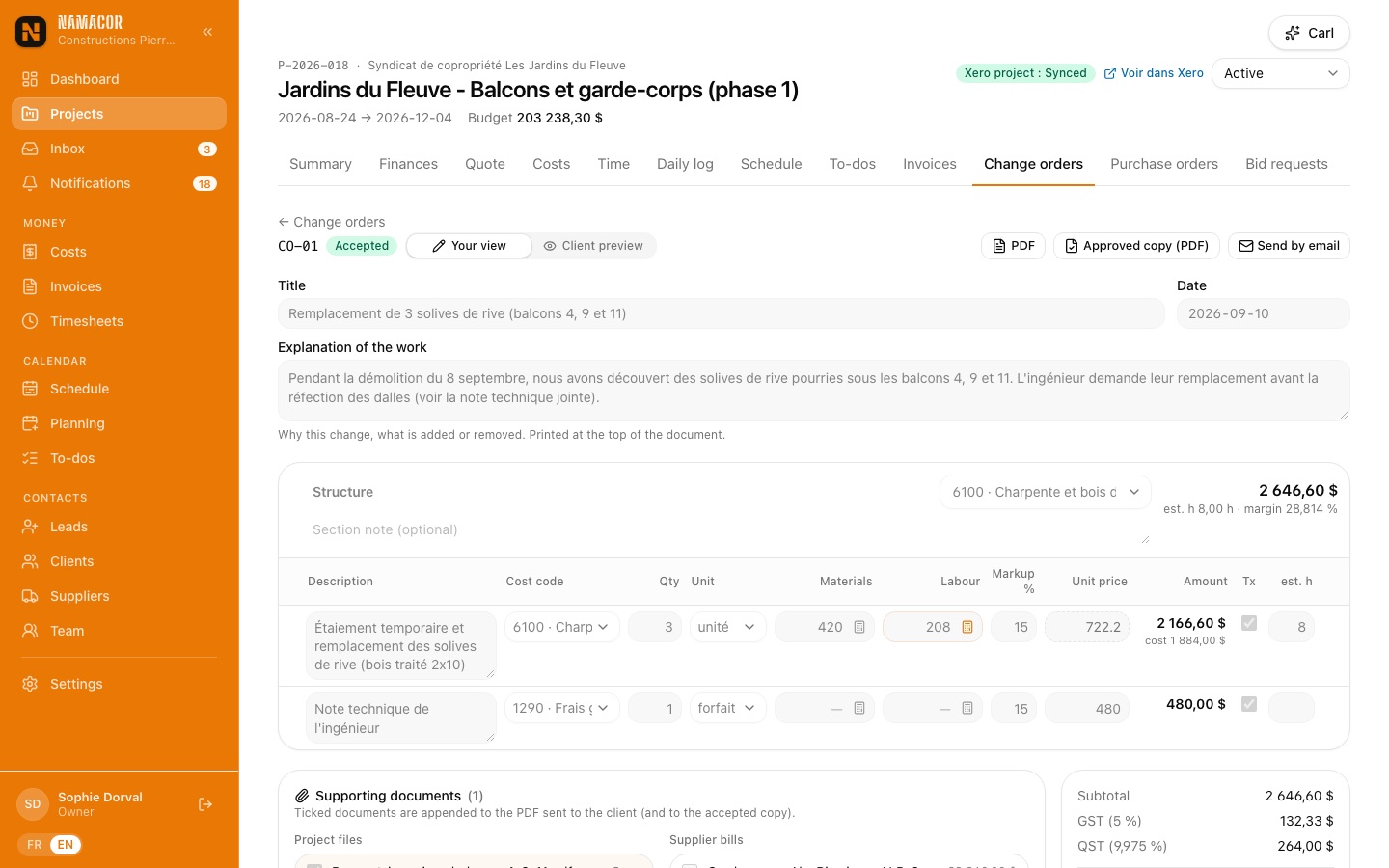
A quote is split into sections (Demolition, Structure, Cabinets…). Each line has a quantity, a unit, a cost code, and either a unit price or a price calculated from costs: (materials + labour) × (1 + markup). Each section shows its subtotal, estimated hours and margin.
- In the project, on the Quote tab, click New quote. Start from a blank page or from a template (for example "Cuisine complète avec ouverture de mur").
- Add sections with Add a section. The section's cost code is offered to its new lines.
- Add lines by hand, from the price Catalog, or by inserting a Template.
- Fill in the costs. As soon as a cost is entered, the unit price becomes calculated (dotted) and the margin appears.
- Save with the button in the bottom bar or ⌘ S / Ctrl S.
The cost calculator
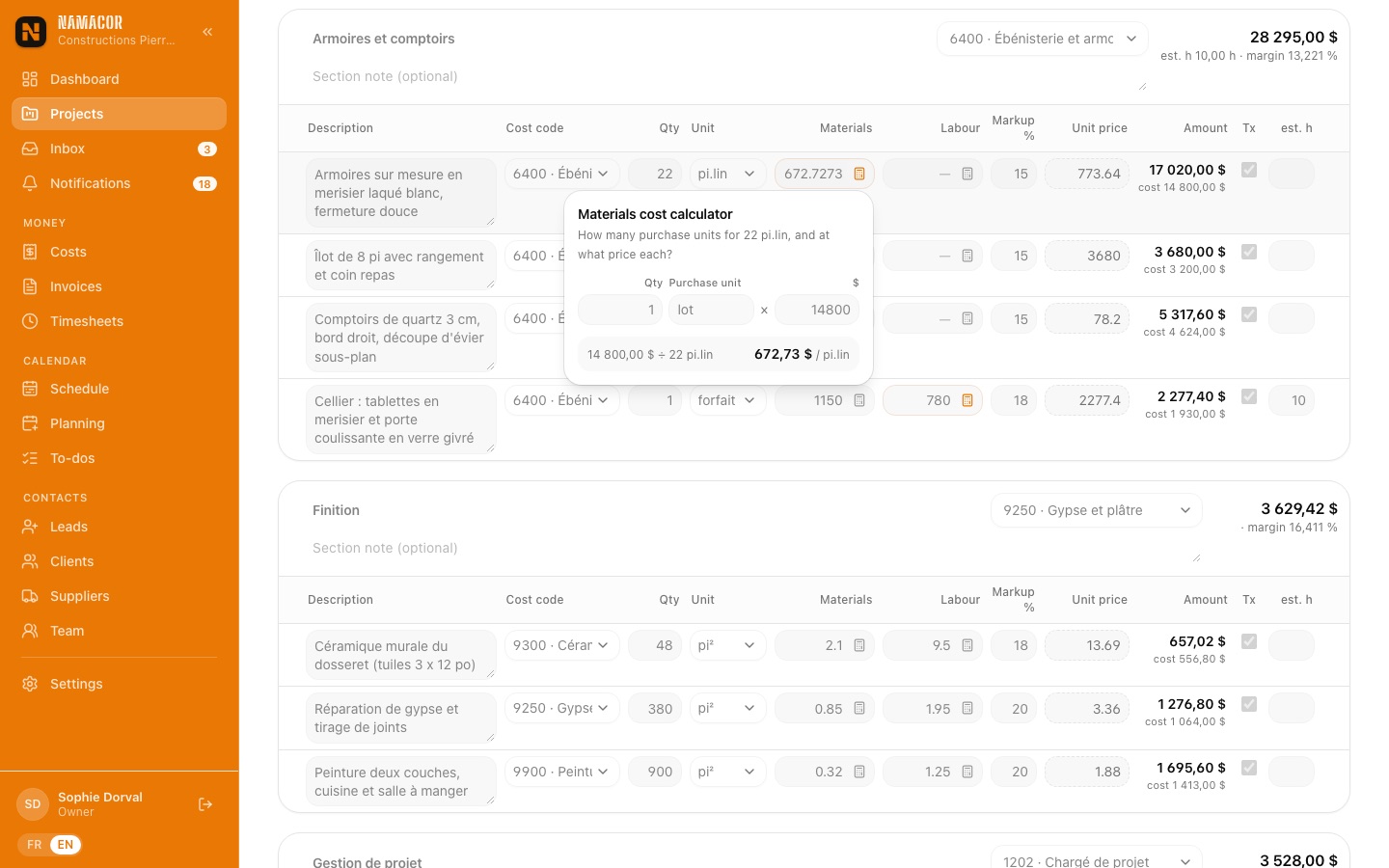
The calculator button inside the Materials and Labour fields does the math you used to do on paper. Materials: quantity bought × purchase price ÷ the line's quantity. Labour: hours × hourly rate ÷ quantity. The unit cost then follows the line quantity, and a calculated field is tinted orange.
Your view and the client preview
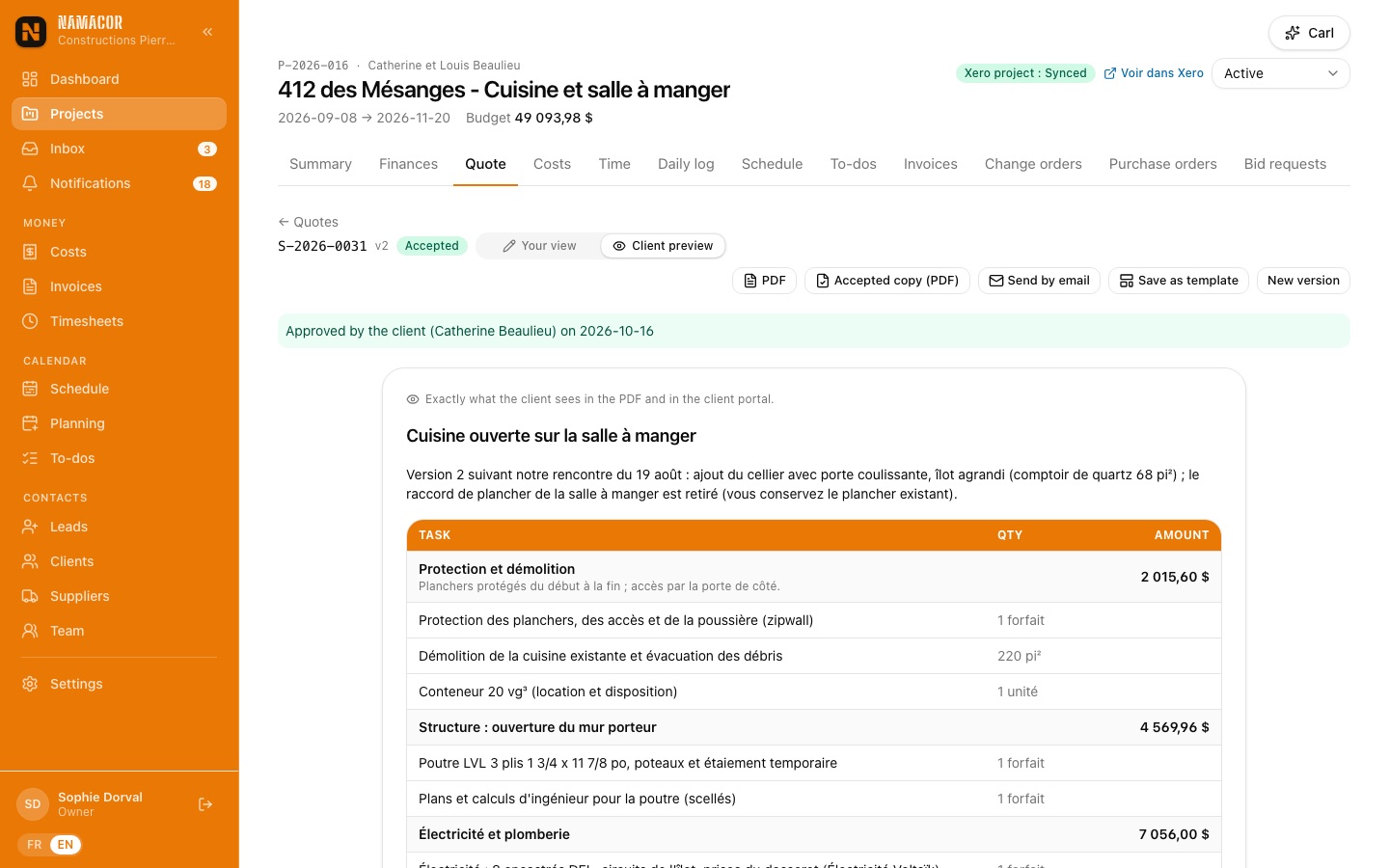
The Your view | Client preview control switches between the editor (costs, markups, margins) and exactly what the client will see in the PDF and the client portal. By default the client sees each section's subtotal, not your line prices; you can choose "price of each line" per quote.
Payment schedule, terms and totals
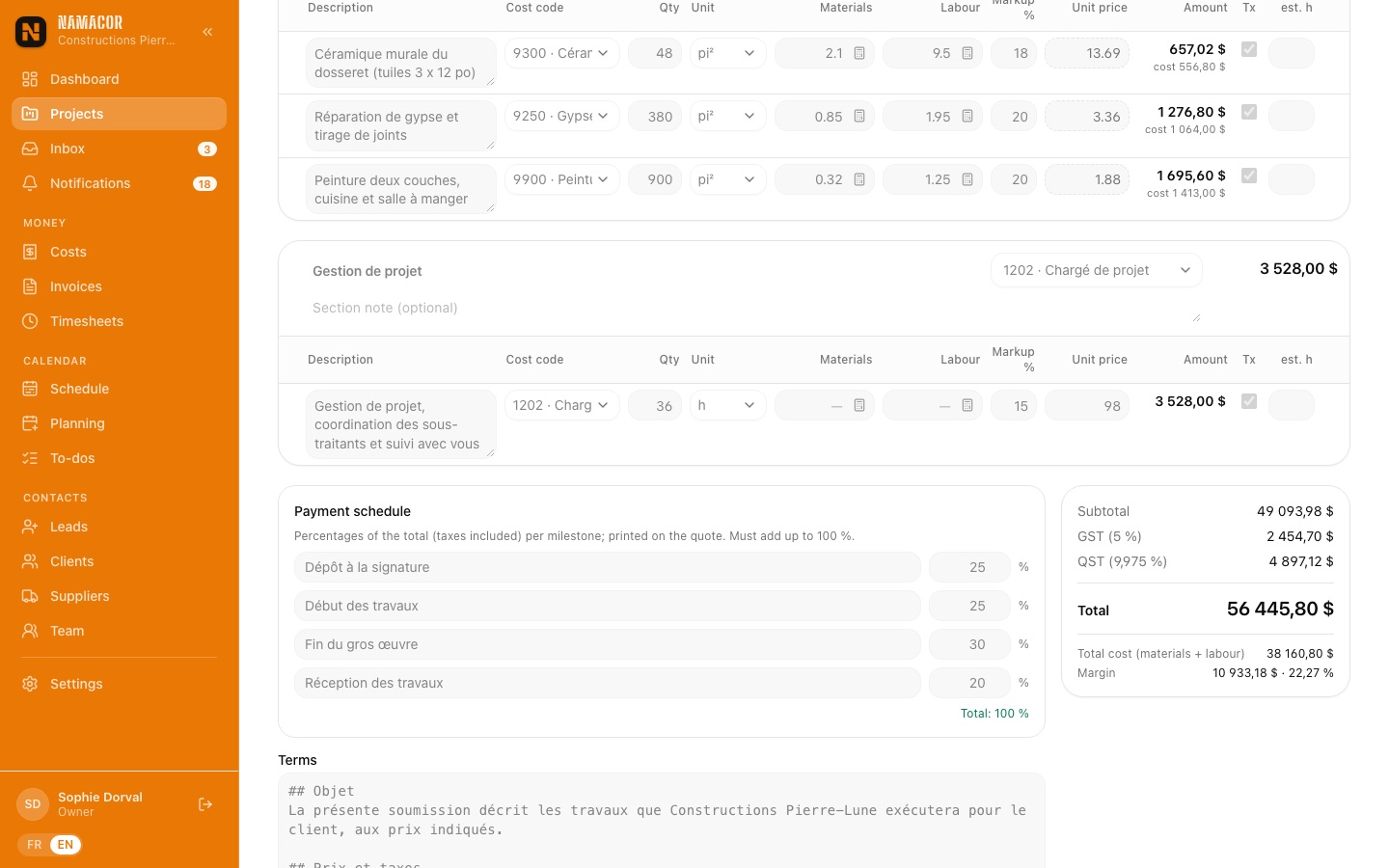
Below the lines, the payment schedule (percentages of the total) and the terms and conditions are copied from your settings and stay editable per quote. The totals show total cost and the margin in dollars and percent.
Versions and templates
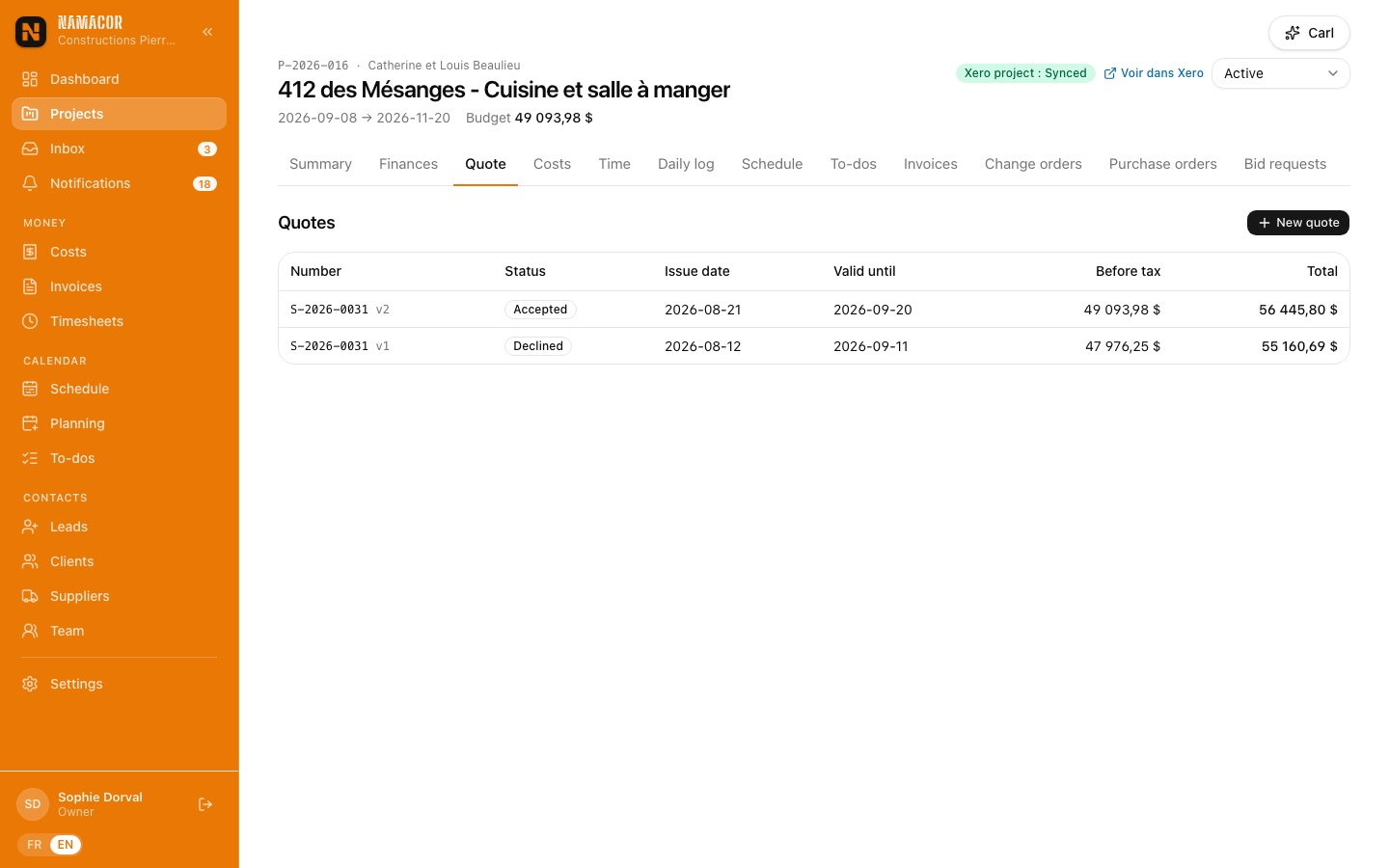
- New version copies a sent quote (sections, costs, schedule, terms) under the same number: the Beaulieu kitchen went from v1 to v2 after a meeting with the client.
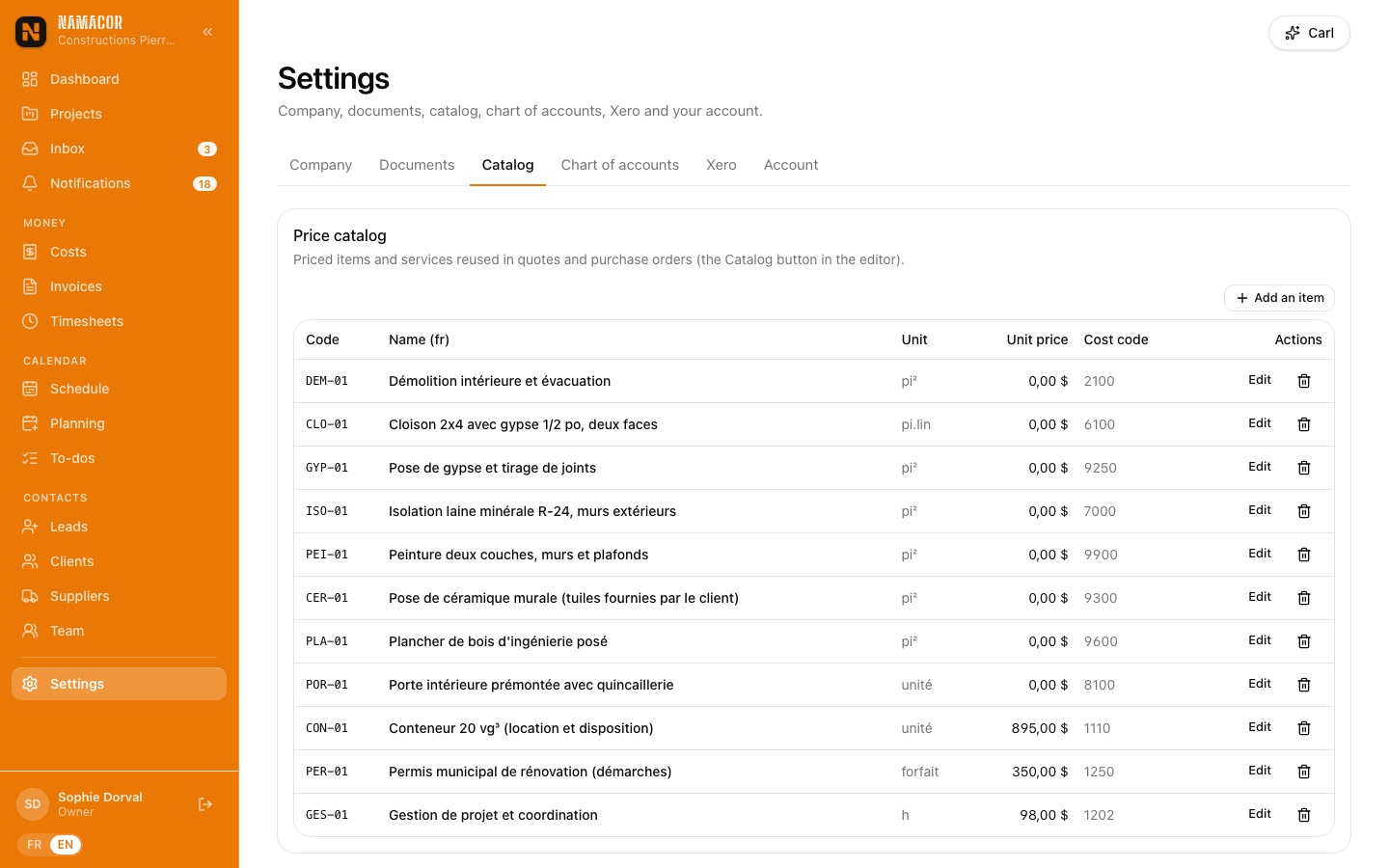
- Save as template turns a good quote into a reusable starting point. Templates are managed in Settings › Catalog.
- The price catalog holds your usual items at a fixed or calculated price.
An online signature, no printingSending and electronic approval
- In the quote, Send by email: recipient, subject and message (in the client's language) are prefilled, the PDF is attached and the email links to the online document. Mark as sent is enough if you delivered it another way.
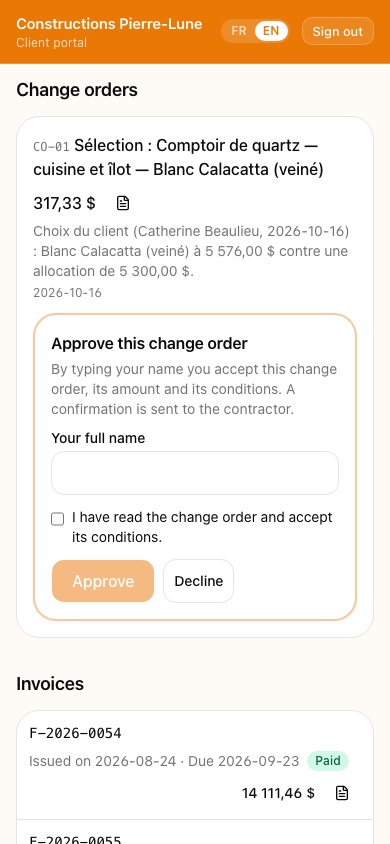
- The client opens the link or their portal, reads the quote, types their name, ticks "I have read…" and approves. They can also decline and give a reason.
- The office gets an email and a notification. The quote turns Accepted, its lines lock, the project turns Active and its budget is updated. An accepted copy of the PDF is kept.
Compare your subcontractors' pricesBid requests
Before pricing a subcontracted package, send a bid request to several subcontractors from your directory. Each gets a personal link to a page showing the scope of work and the plans, where they enter their price, validity and notes, and attach their own quote.
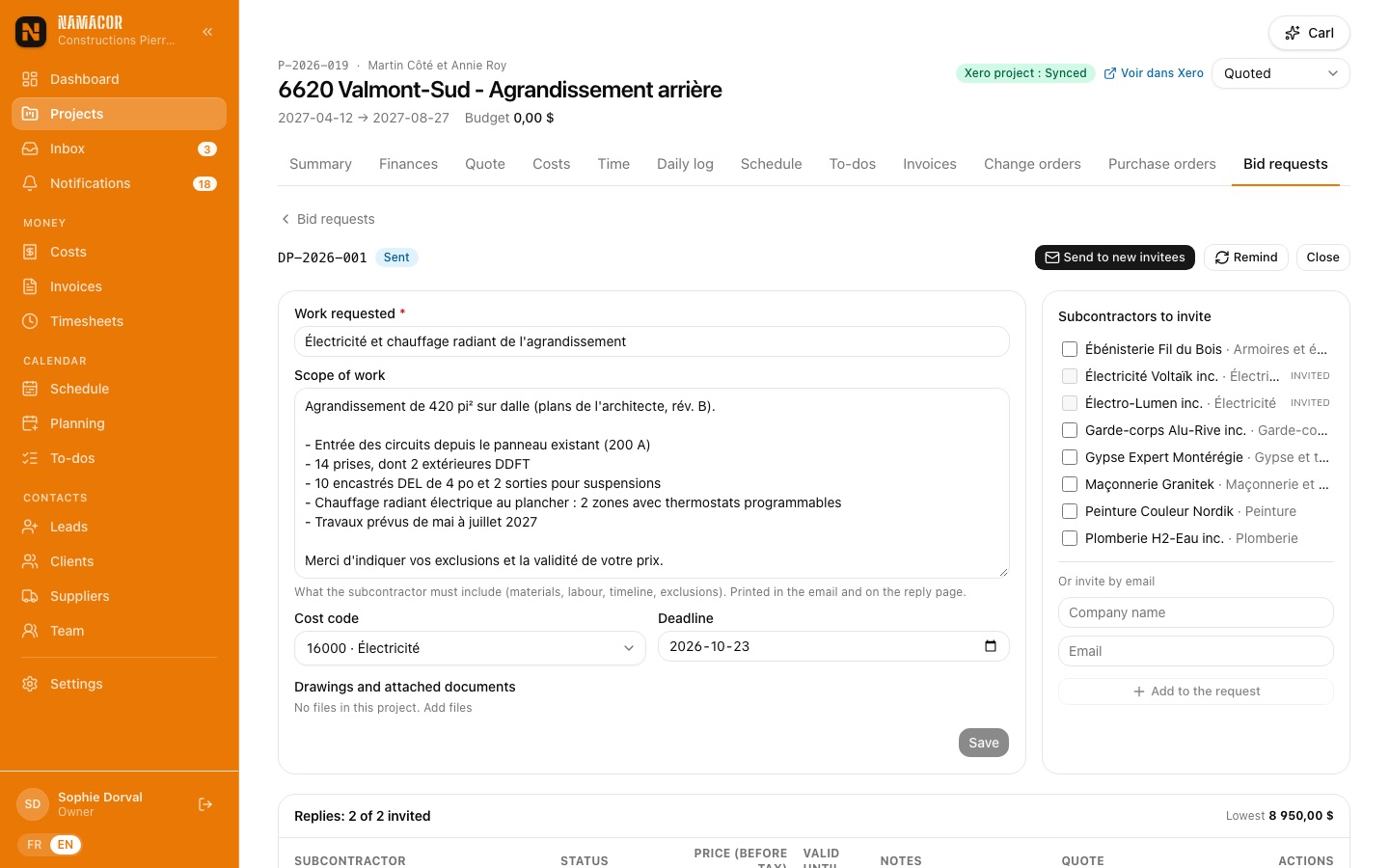
- On the project's Bid requests tab › New bid request. Describe the scope, pick the cost code, the deadline and the plans to attach (project files).
- Tick the subcontractors to invite (or invite a one-off email address), then Send the request.
- Answers appear side by side with their attached quote. Award closes the request and opens a draft purchase order for the winner.
The job site, day after day
Everyone knows where they work tomorrow, hours come in from the phone already coded, the daily log fills up with photos, and what you order from suppliers is tracked through to the bill.
A plan everyone can readSchedule and Gantt
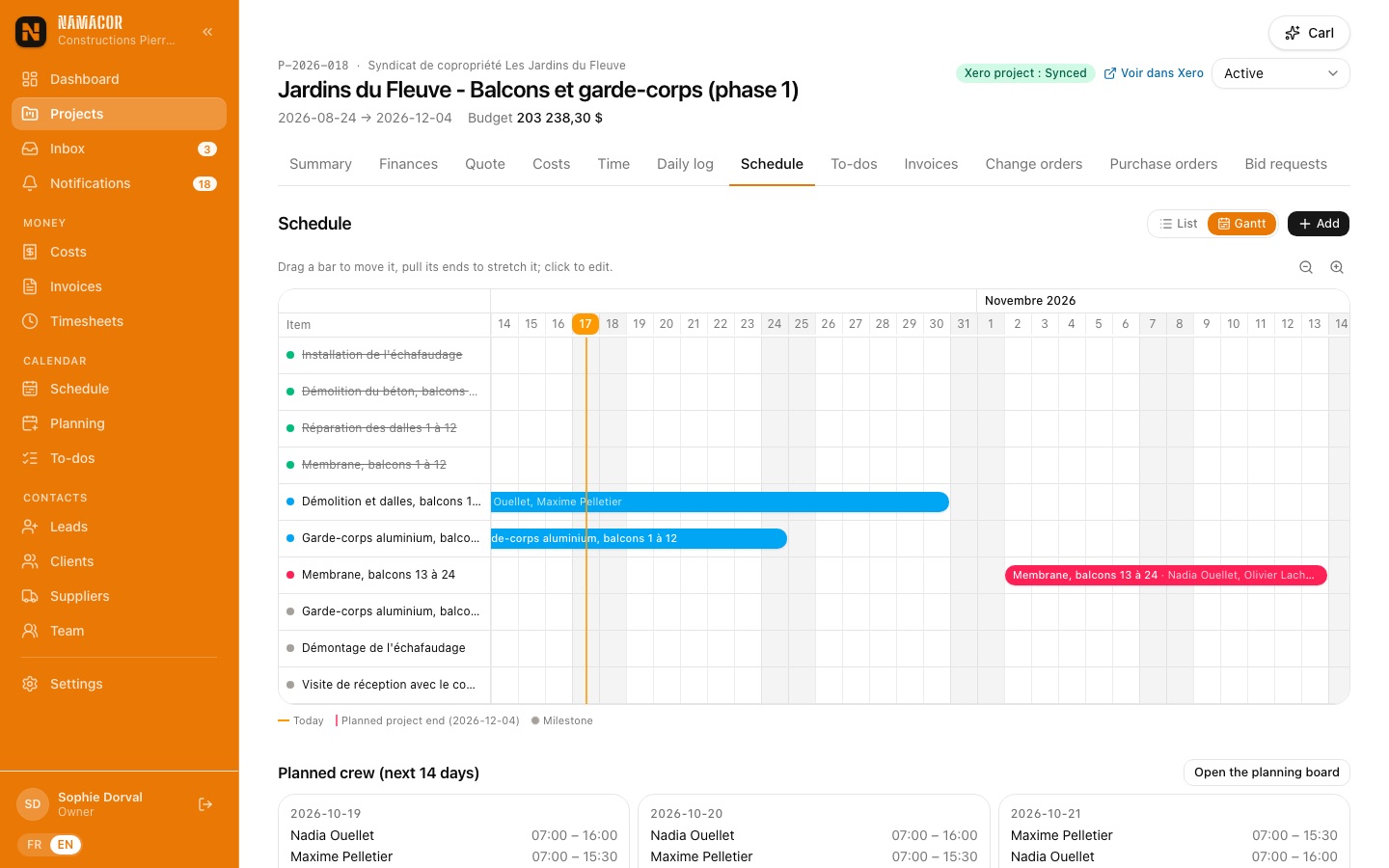
A project's Schedule tab lists phases, tasks and milestones with their status (planned, in progress, done, blocked) and assigned workers. The Gantt view (desktop) works with the mouse: drag a bar to move it, pull its ends to stretch it, click to edit. The orange line marks today.
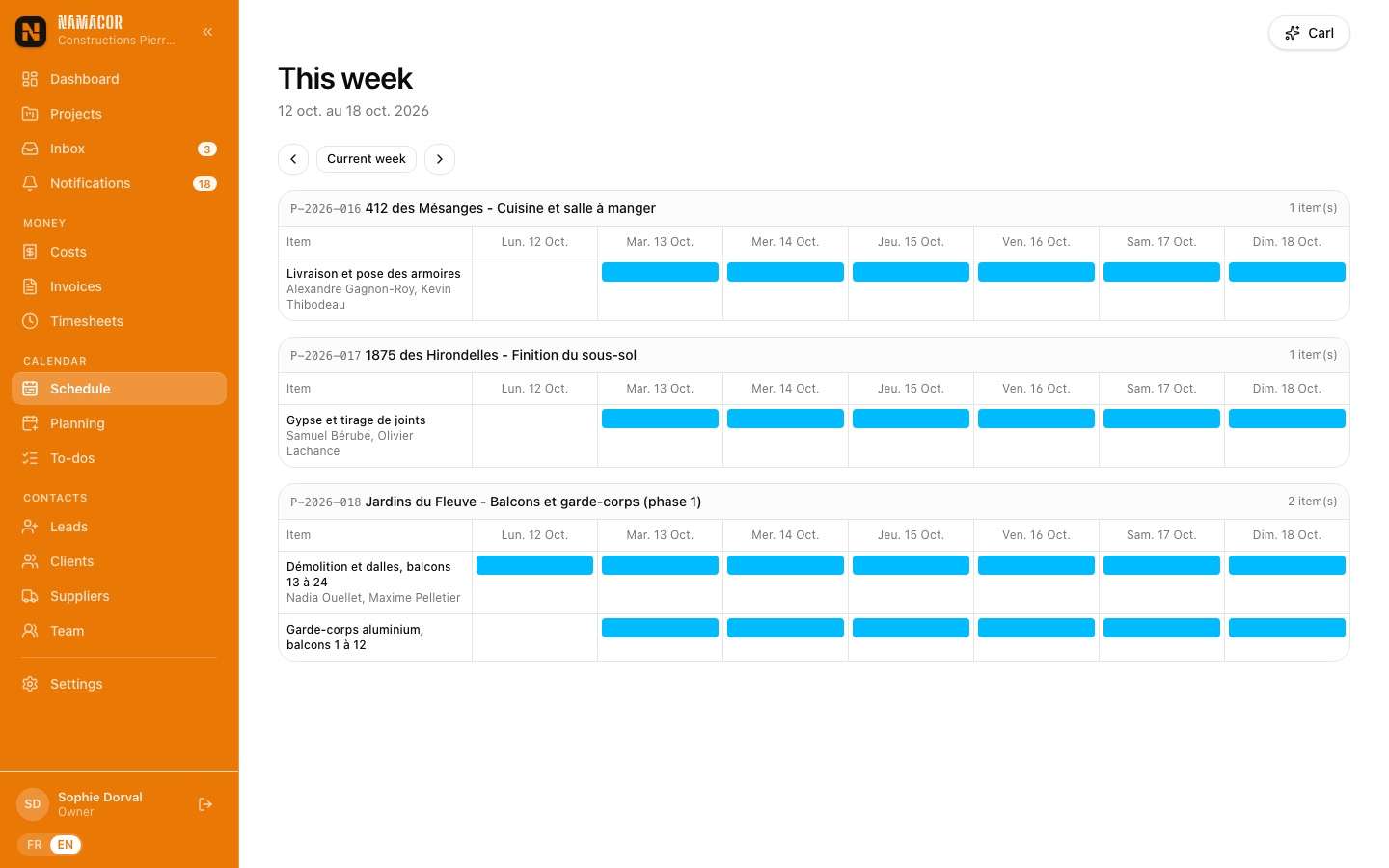
The Schedule menu brings all projects together week by week.
Who works where tomorrow morningCrew planning
The Planning board shows the week by worker or by project. Click a cell to assign someone (project, hours or start/end, role, note); click a label to edit it. Absences grey out cells, and a triangle flags conflicts: overlap, more than 10 h in a day, or an absent worker.
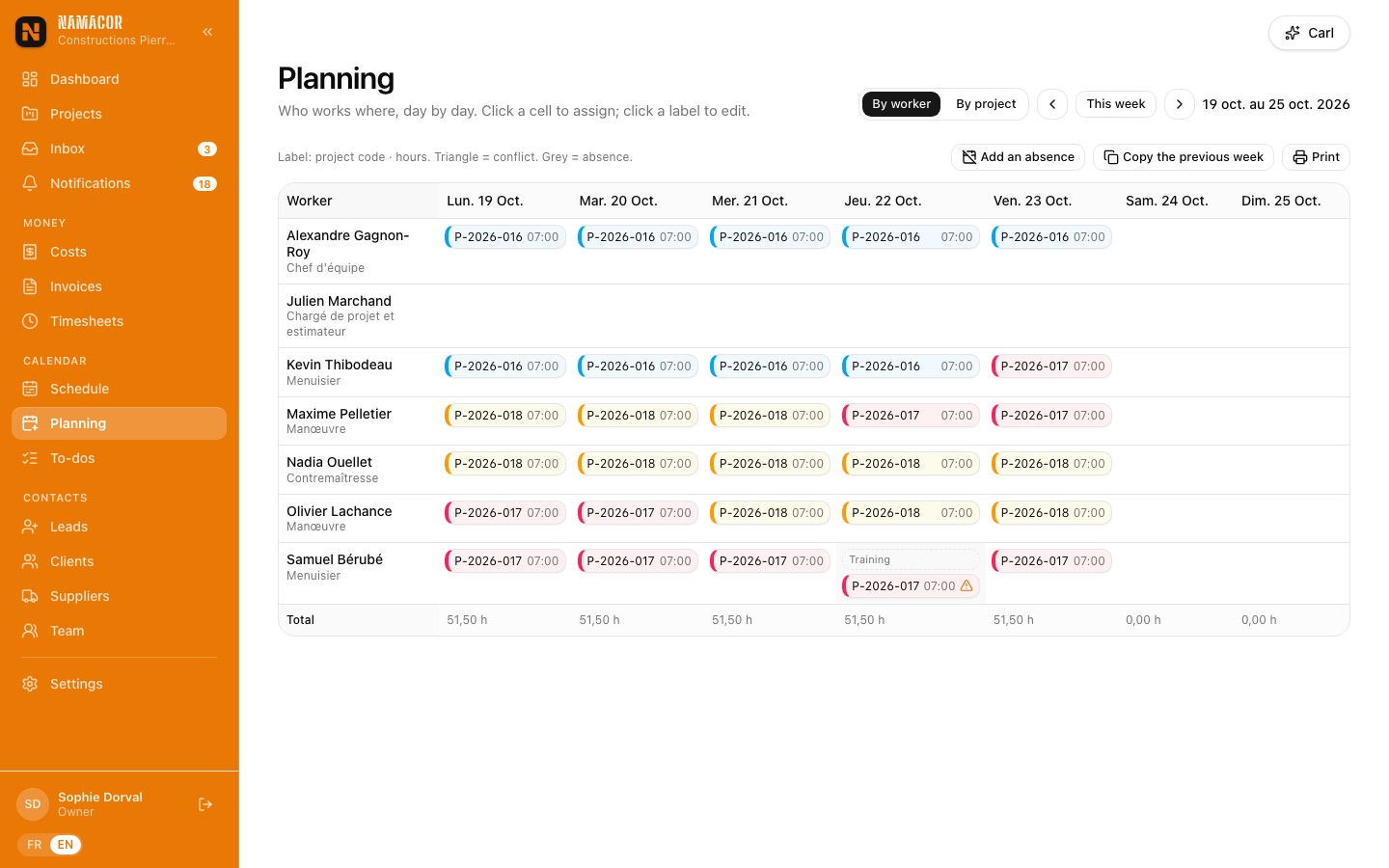
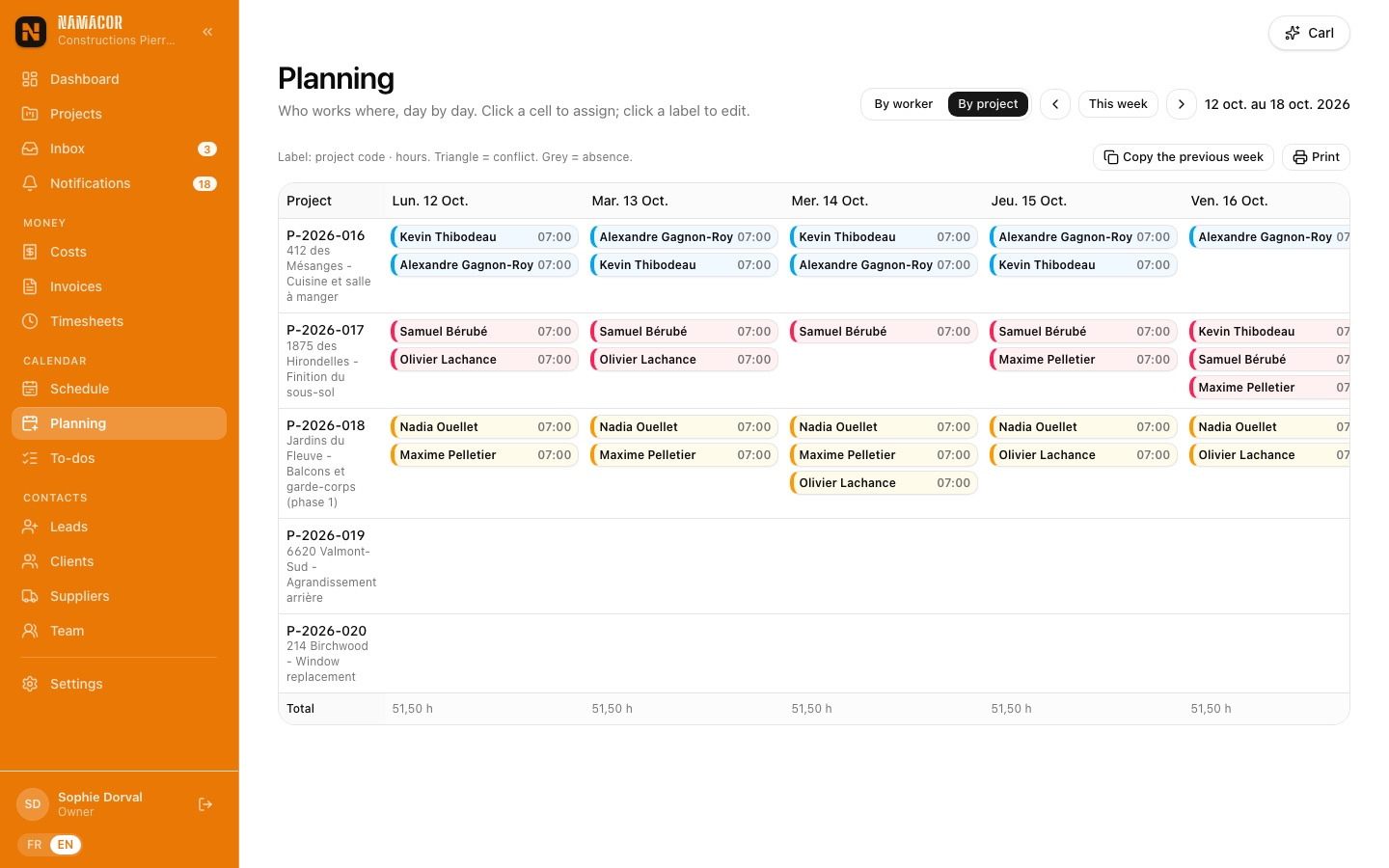
- Copy the previous week copies assignments without duplicates.
- Add an absence: vacation, sick, training or other.
- A worker planned on a project sees it on their phone automatically (projects, hours, log, schedule).
- Print produces the board for the site trailer.
Your crew only has a phoneThe crew on their phones
Field workers sign in with a code received by email: no password and no Xero account. They only see their projects, and never a dollar amount.
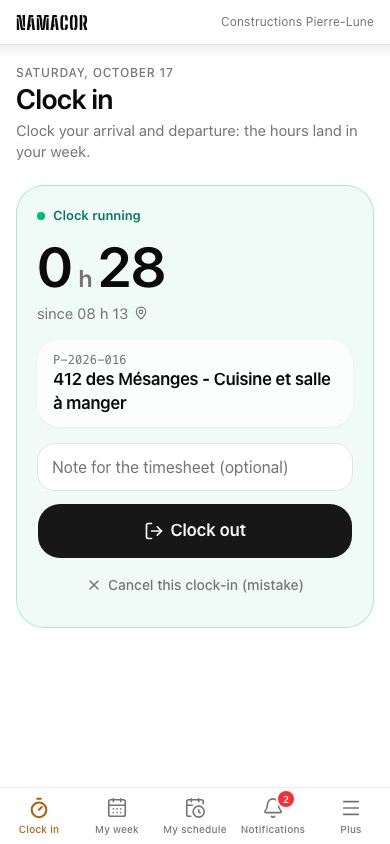
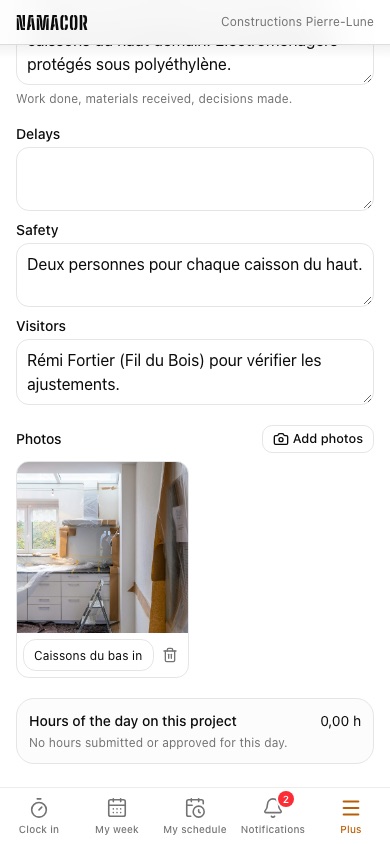
- Clock in: pick the site (the one planned today is proposed), clock in, then clock out. GPS position is recorded if the phone allows it. On clock-out, the hours become a timesheet entry noted with the clock-in and clock-out times.
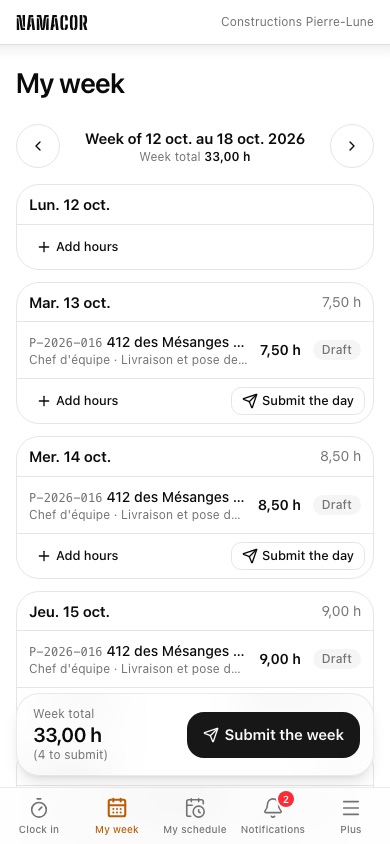
- My week: enter or fix hours, then Submit the week.
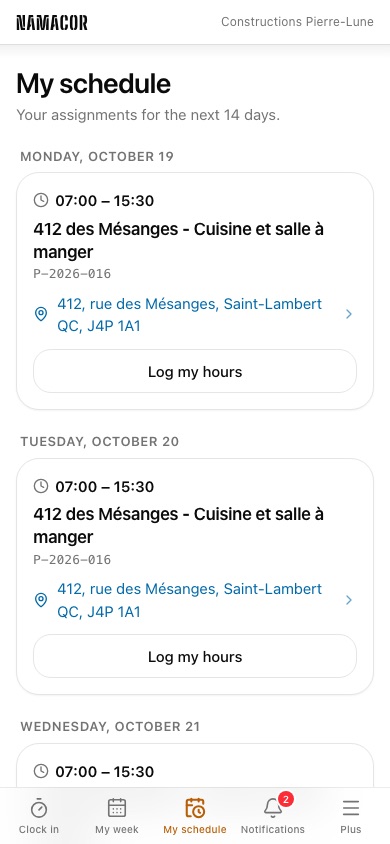
- My schedule: assignments for the next 14 days, the site address (link to Maps) and instructions.
- Daily log and My to-dos: today's notes with photos, and what is assigned to them.
- Without a network, hours and the log are kept on the phone and sent when the connection comes back.
Accurate hours, approved in one clickTimesheets and approval
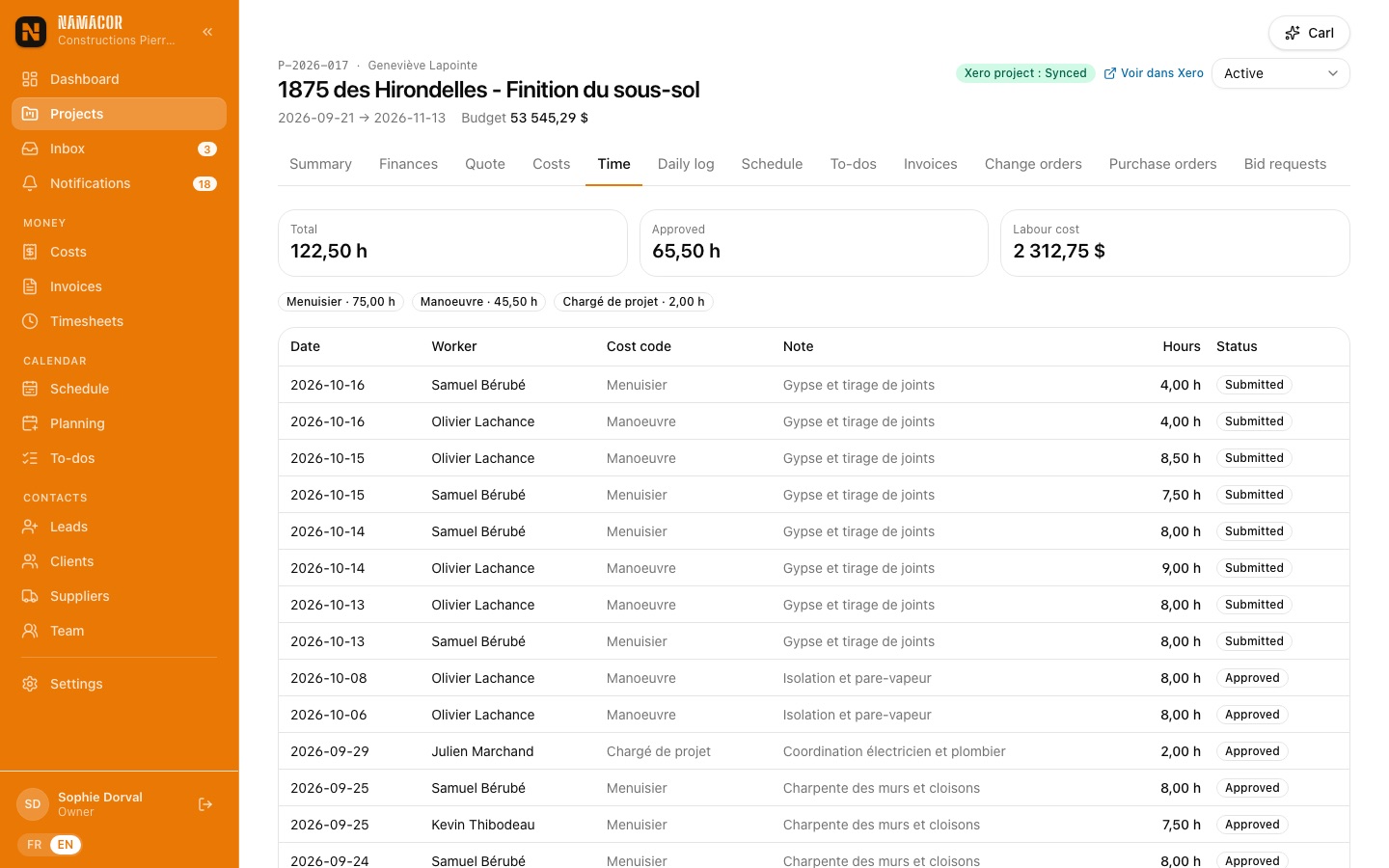
The Timesheets menu groups the week's hours by worker. Approve a whole week or a selection; reject with a note, and the worker sees it on their phone. On approval, the labour cost is frozen (hours × that day's internal rate) and the hours go to Xero Projects.
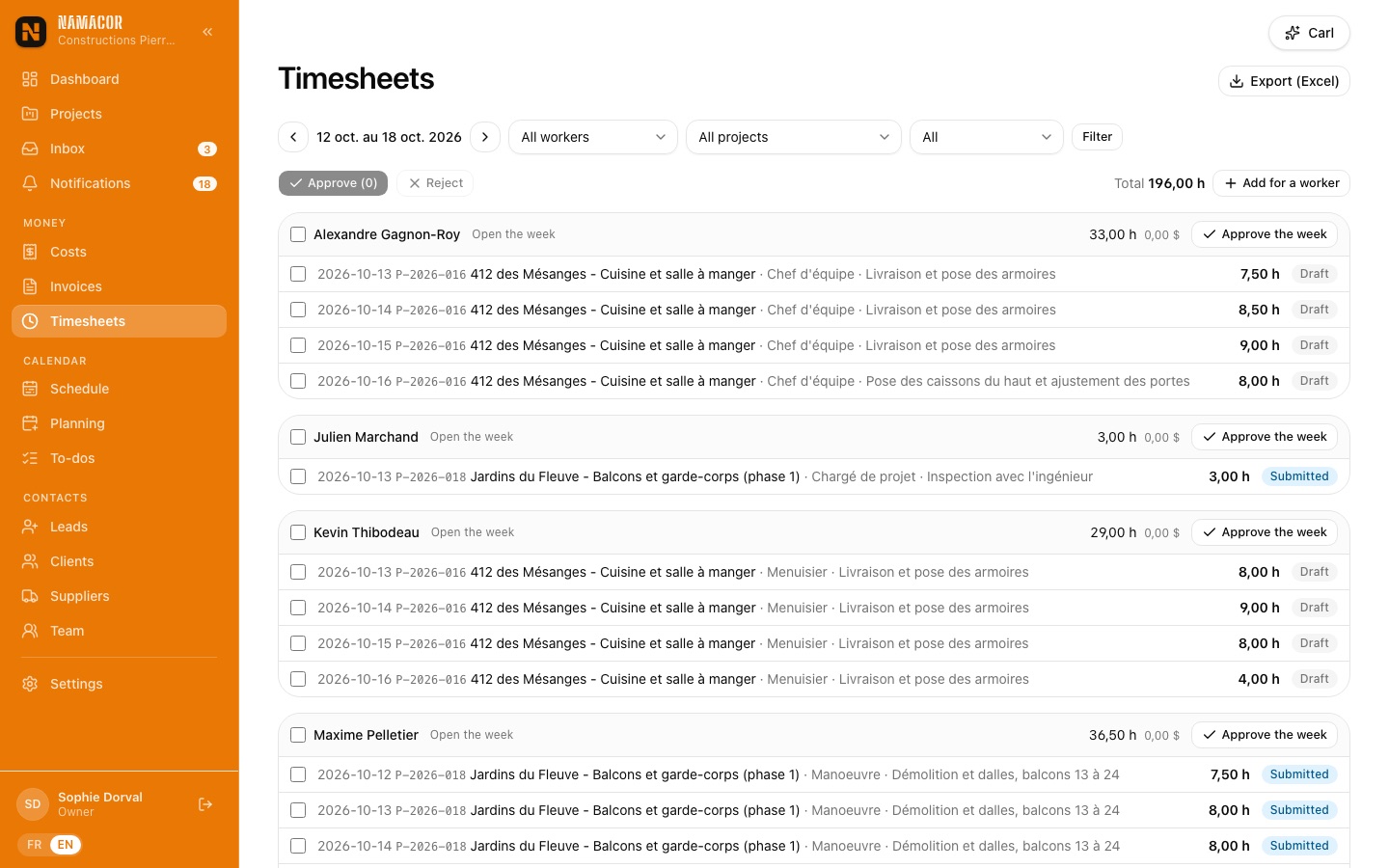
- Export (Excel) exports the week for payroll.
- The office can also enter hours for a worker (Add for a worker).
The memory of the siteDaily log
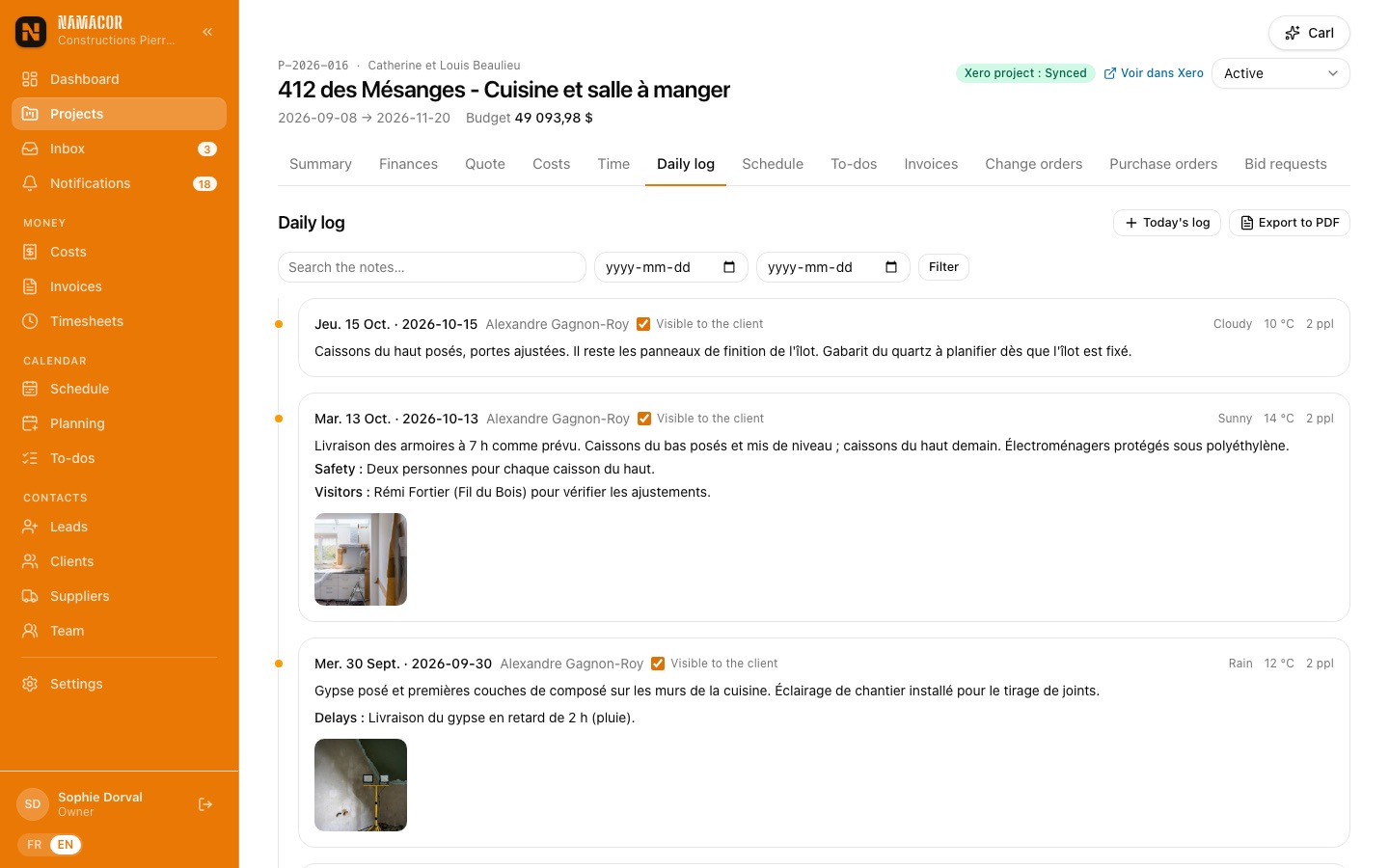
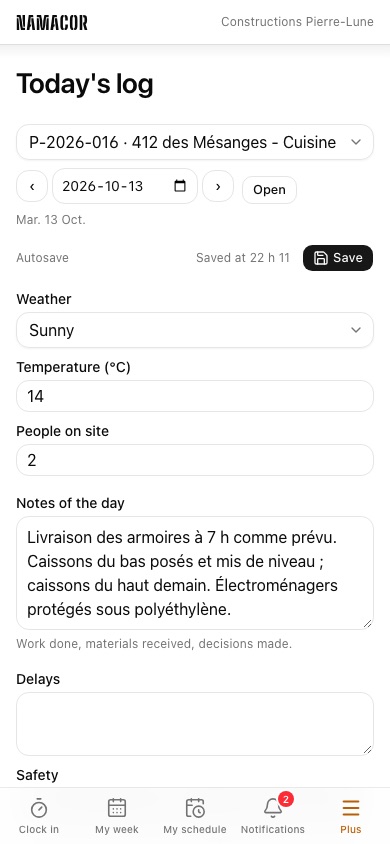
One log per project per day: weather, temperature, crew size, notes, delays, safety, visitors and photos. Saving is automatic. Tick Visible to the client to show an entry and its photos in their portal.
What is ordered, what is still committedPurchase orders
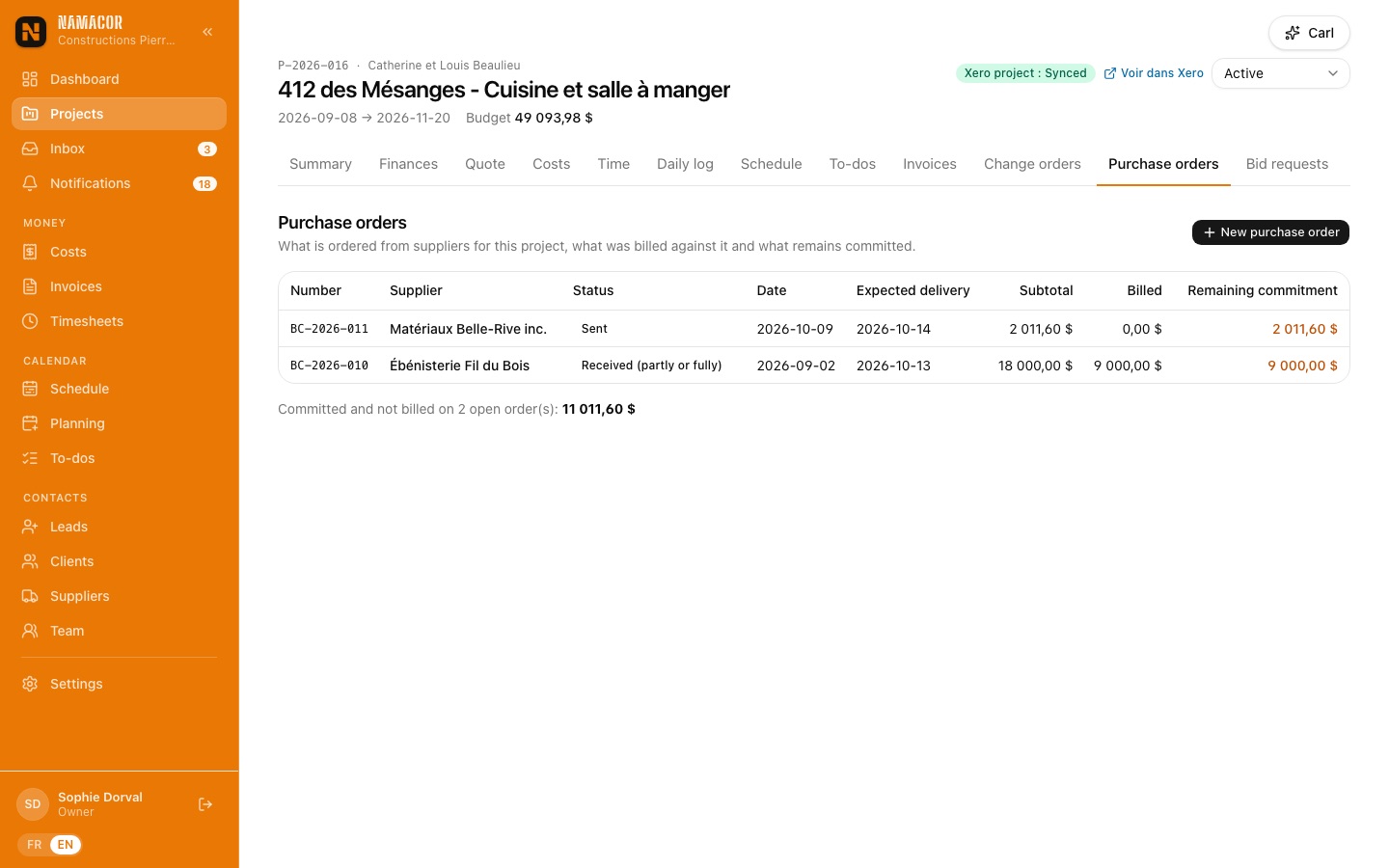
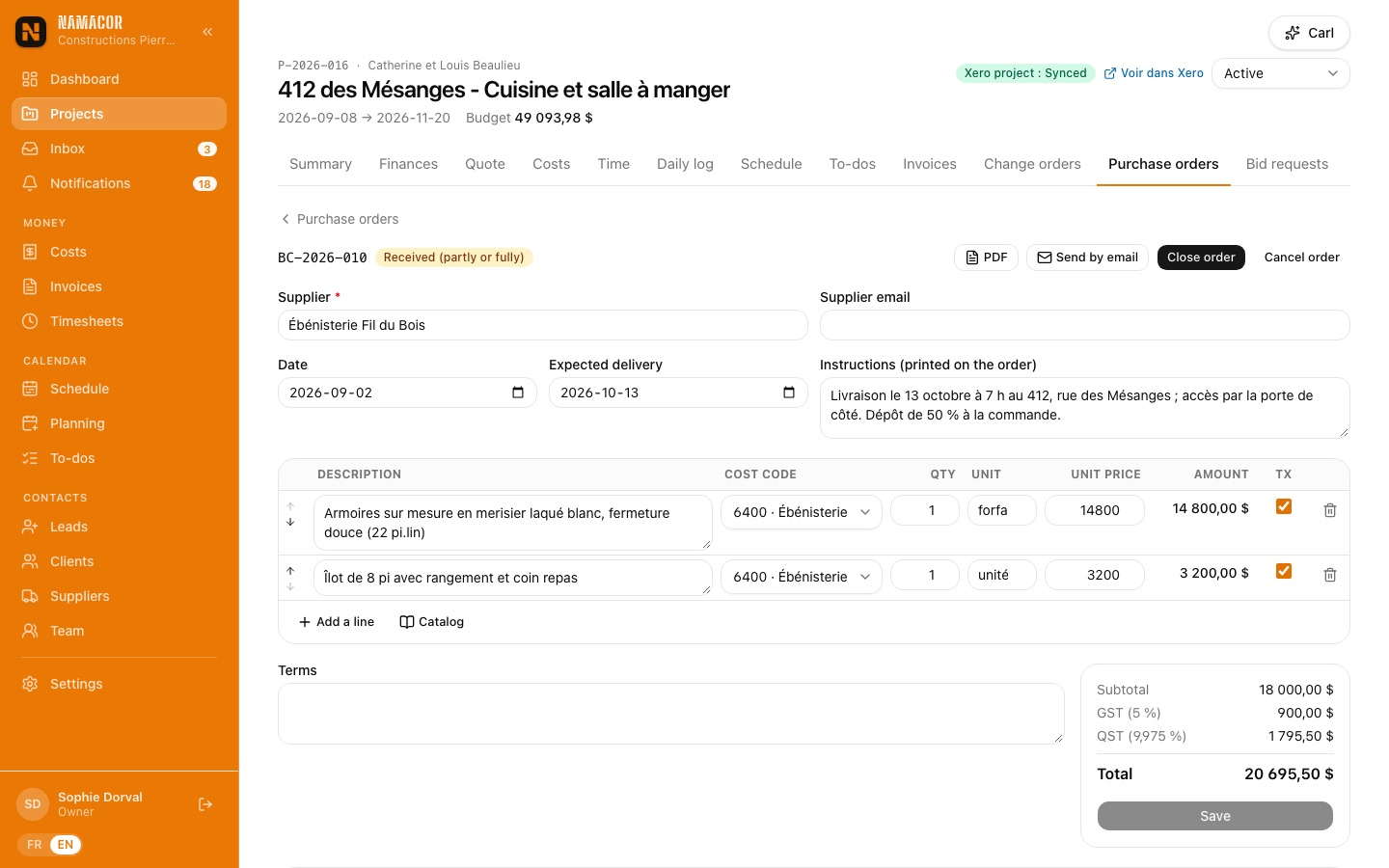
A project's Purchase orders tab keeps what you order from suppliers (numbered BC-2026-…), with lines, taxes, PDF and email sending. When the supplier's bill arrives, enter it against the order: the order turns "Received" and the remaining commitment updates, which feeds the project's estimate at completion.
Nothing falls through the cracksTo-dos and files
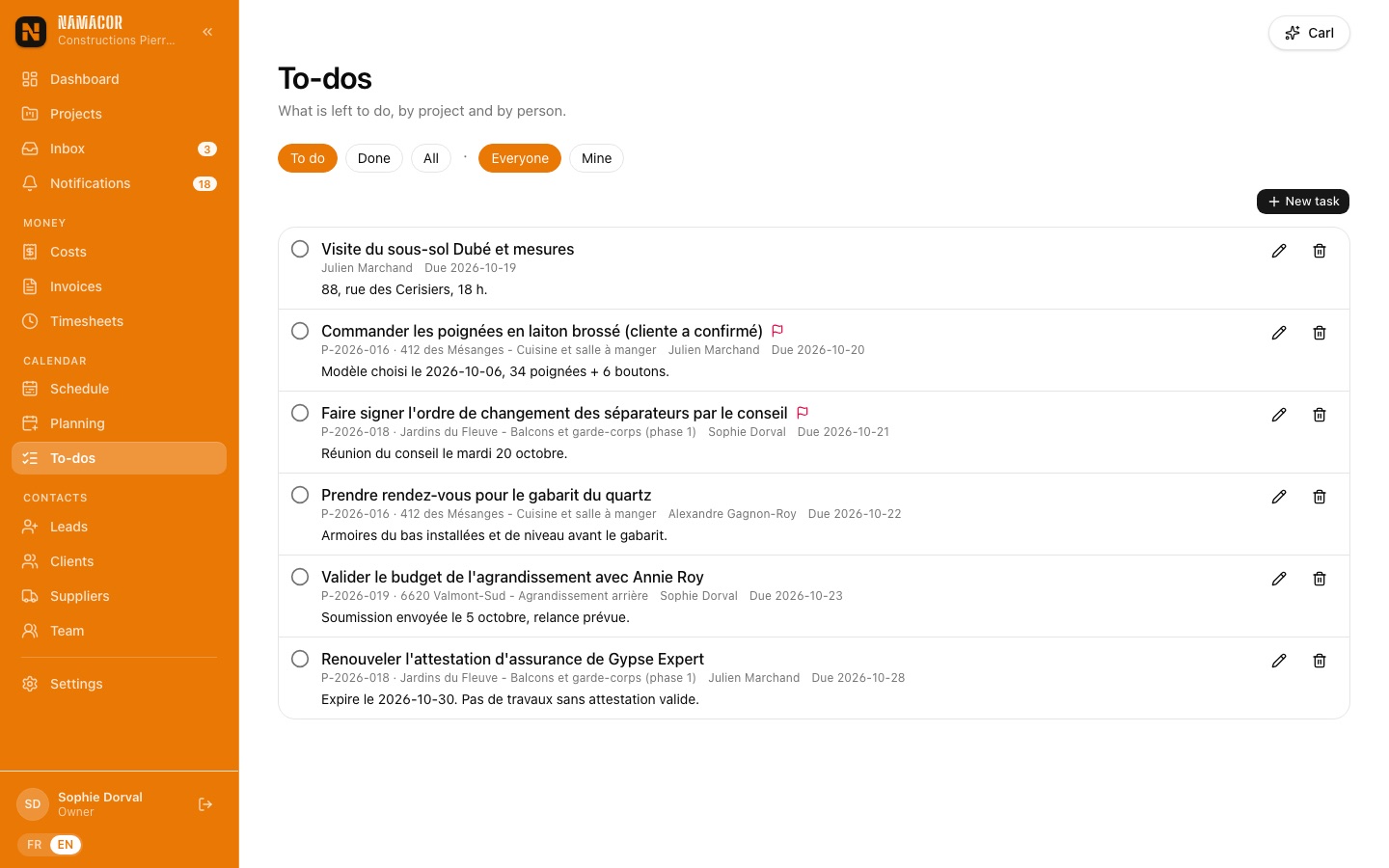
To-dos lists what is left to do, by project and by person, with due date and priority. An assigned to-do notifies the person, even in the field.
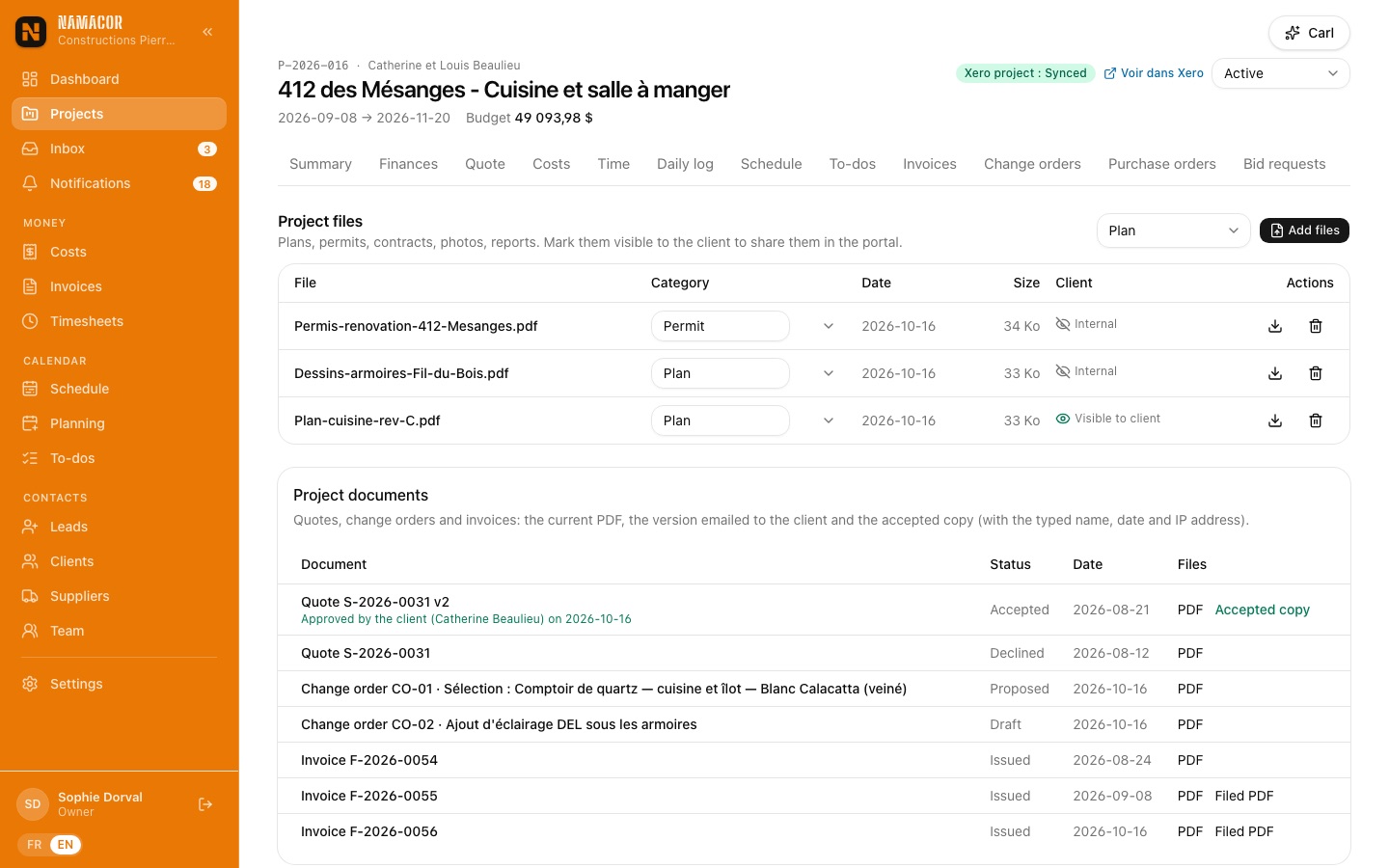
A project's Files tab holds plans, permits, contracts, photos and reports. The eye button shares a file in the client portal.
Bill at the right time, get paid
Invoices are built from the contract (payment schedule, percentage, milestone) or from hours and disbursements, go to Xero with their PDF, and their payment status comes back from Xero on its own.
Bill what was agreedProgress invoices
On the project's Invoices tab, New invoice offers several methods:
| Method | When to use it |
|---|---|
| Quote payment schedule | Tick the step reached (deposit, start of work…); a step already billed is locked. |
| % of contract | Progress billing by completion (e.g. 20% of the balconies). |
| Fixed amount | Any amount, with your own lines. |
| Schedule milestone | A step of the project schedule is done. |
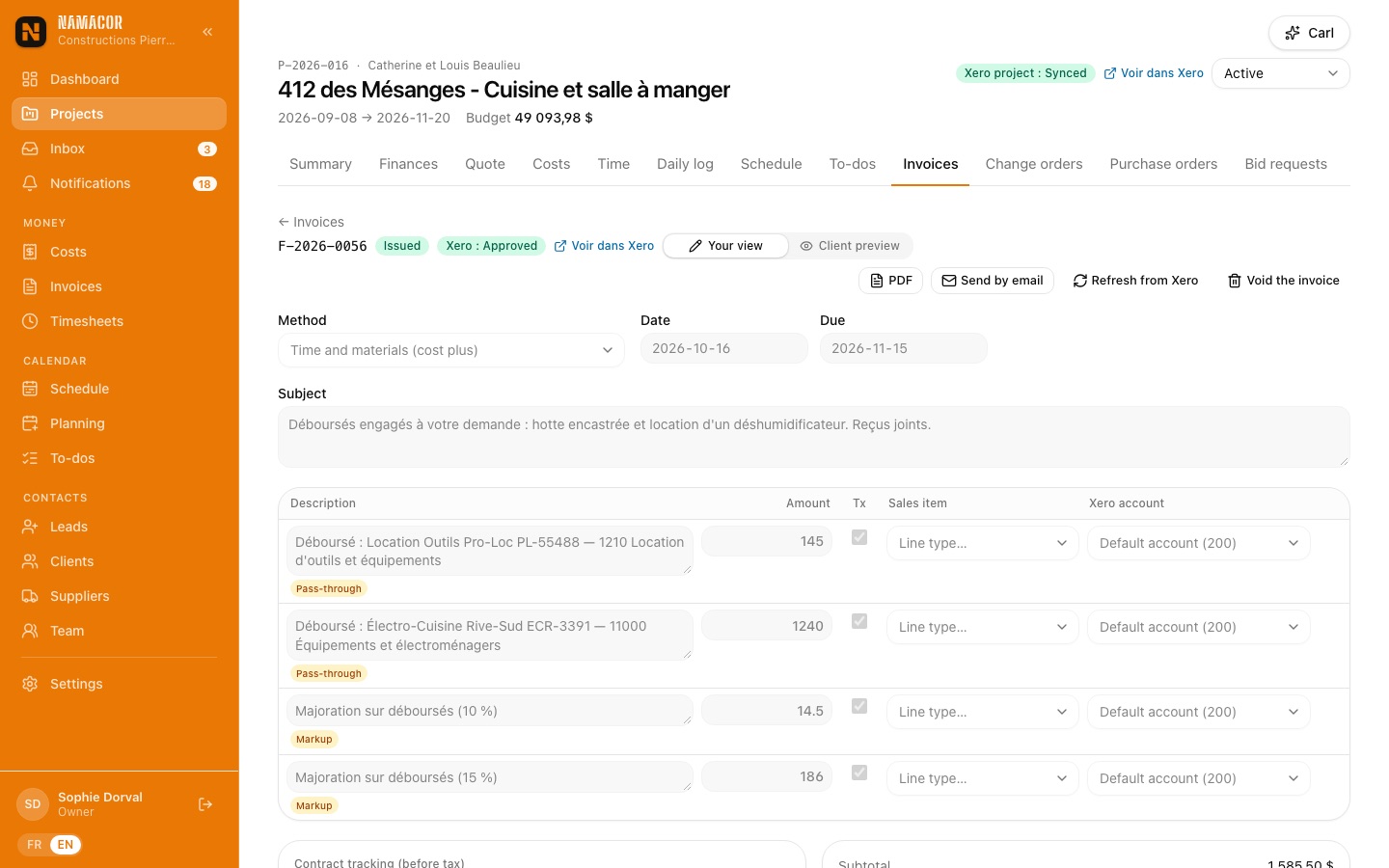
| Time and materials (cost plus) | Approved hours not yet billed and disbursements to rebill. |
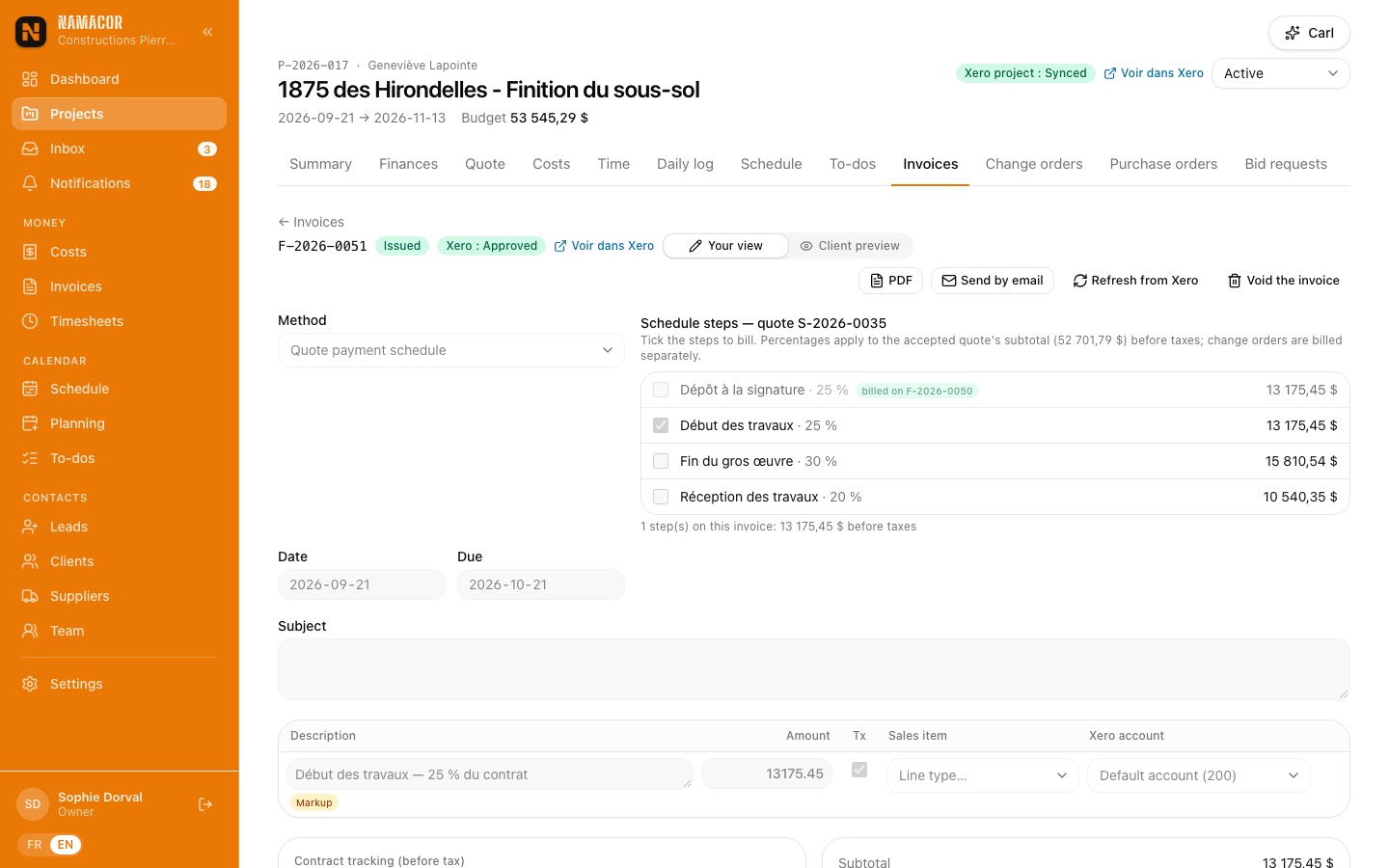
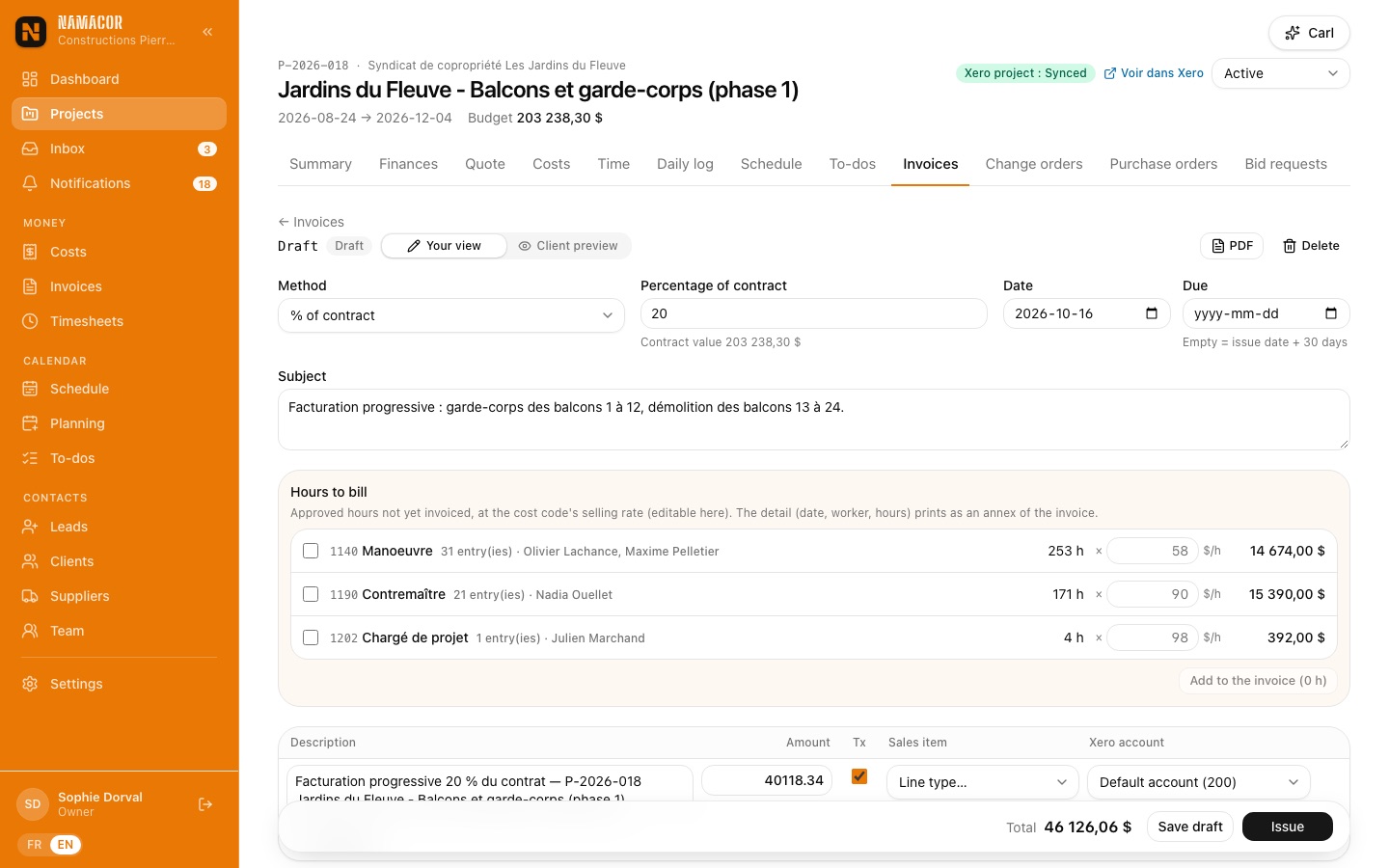
- Pick the method, then the date; the default due date follows Settings (issue date + N days).
- Check the lines and the Client preview, then Save draft.
- Issue assigns the number (F-2026-…), locks the amounts and sends the invoice to Xero with its PDF.
- Send by email to the client: PDF attached, online link, rebilled receipts attached.
Never forget a disbursementRebilling costs and hours
A cost marked rebillable (with its own markup) waits in the "costs to rebill" section of the project's next invoice. Each ticked cost becomes a "Disbursement" line and a "Markup" line; its receipt is attached to the PDF, the Xero invoice and the email. It can never be rebilled twice.
The hours to bill block lists approved, unbilled hours by cost code at the code's selling rate (editable per line). The PDF adds an appendix with the detail of billed hours.
Know who owes whatInvoice follow-up and reminders
The Invoices menu lists every invoice with a computed status: Draft, To send, Sent, Overdue, Partly paid, Paid. At the top: amount receivable, amount overdue, invoices to send and drafts, each filtering the list.
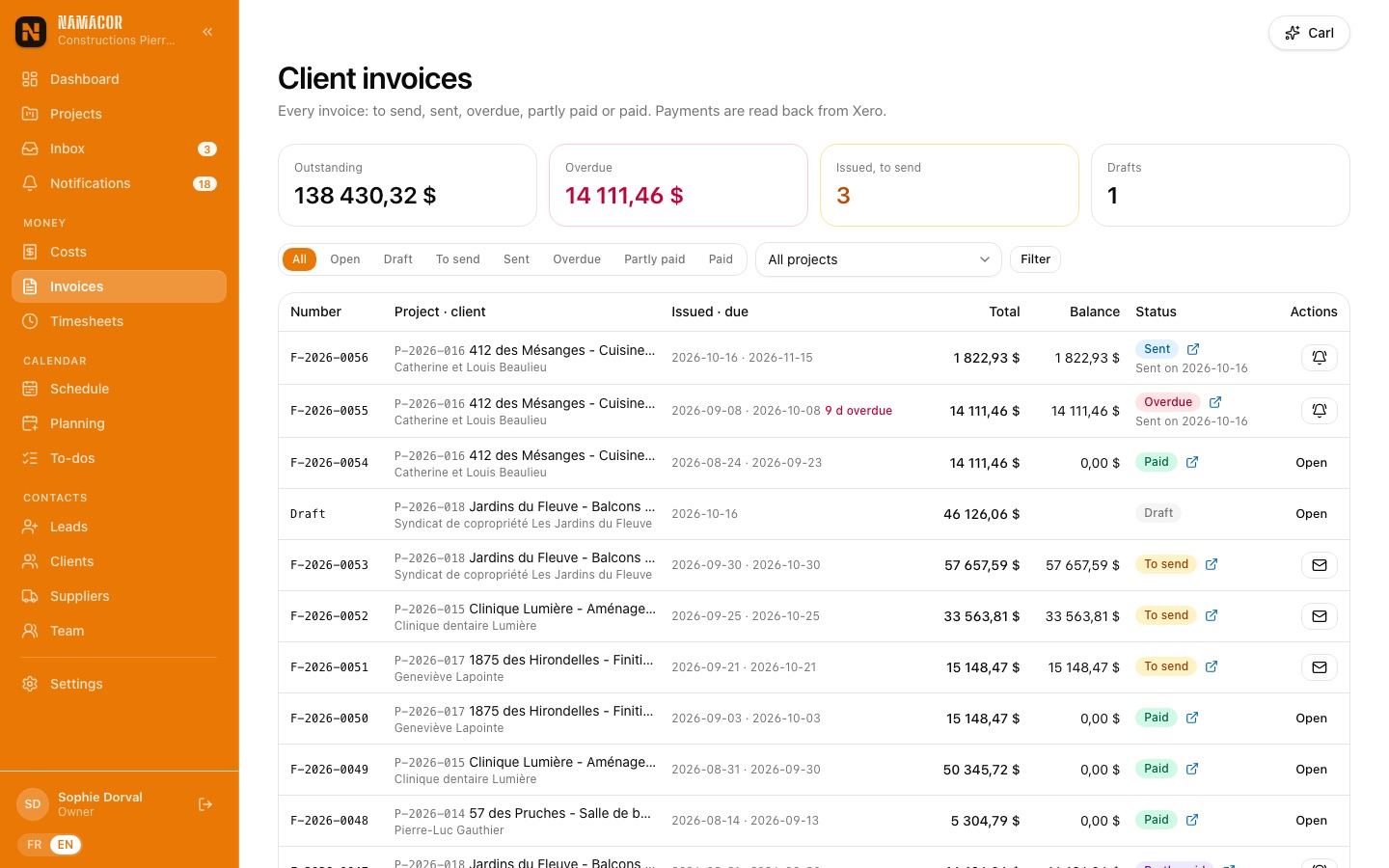
On a sent, overdue or partly paid invoice, Send a reminder prepares the reminder email (balance, due date, link, PDF) and counts the reminders sent.
Know where each project stands
Supplier bills are read automatically, coded to the right project in seconds and sent to Xero. The Finances tab combines contract, costs, hours, commitments and collections to show the actual and projected margin.
The only view that combines everythingProject finances
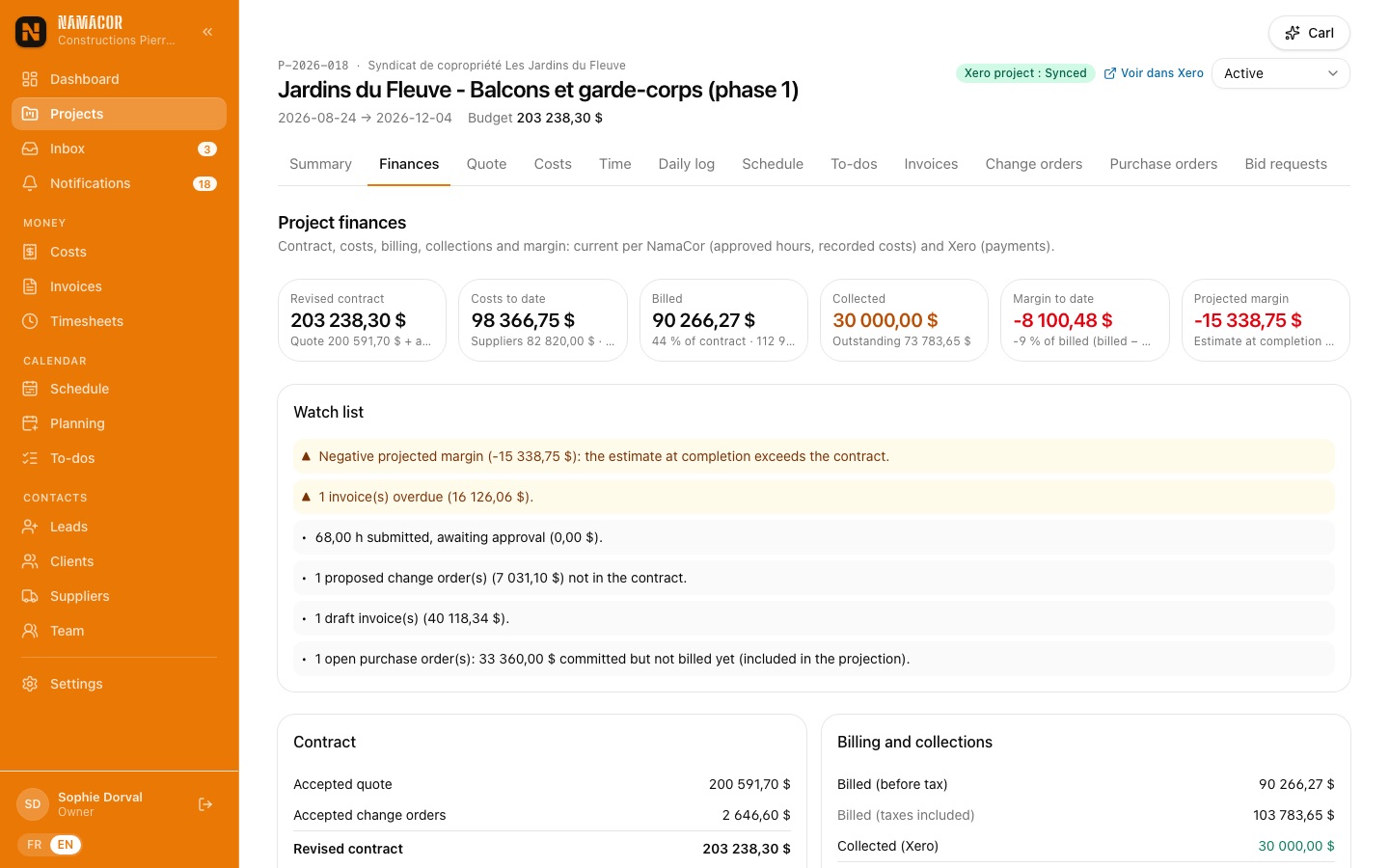
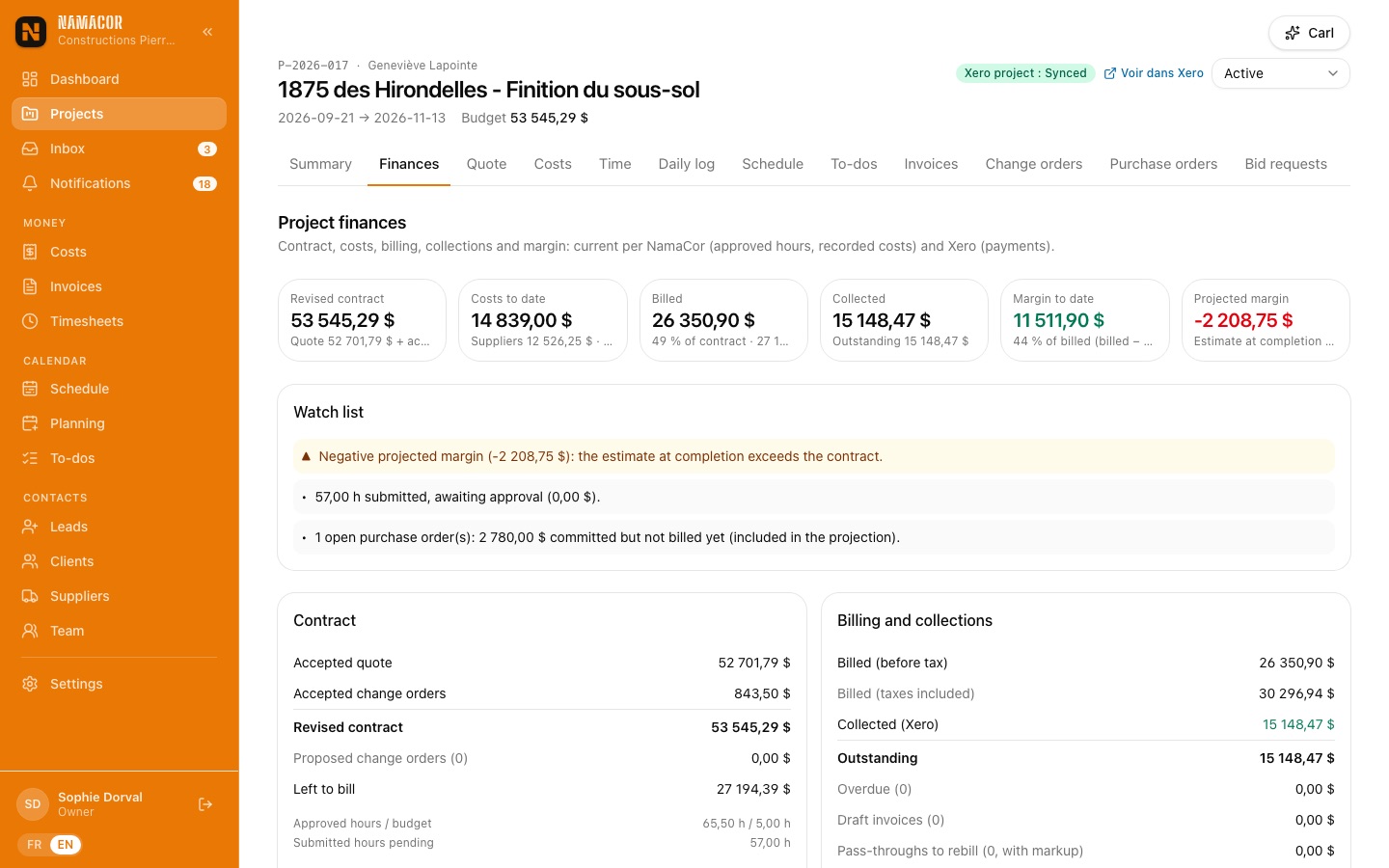
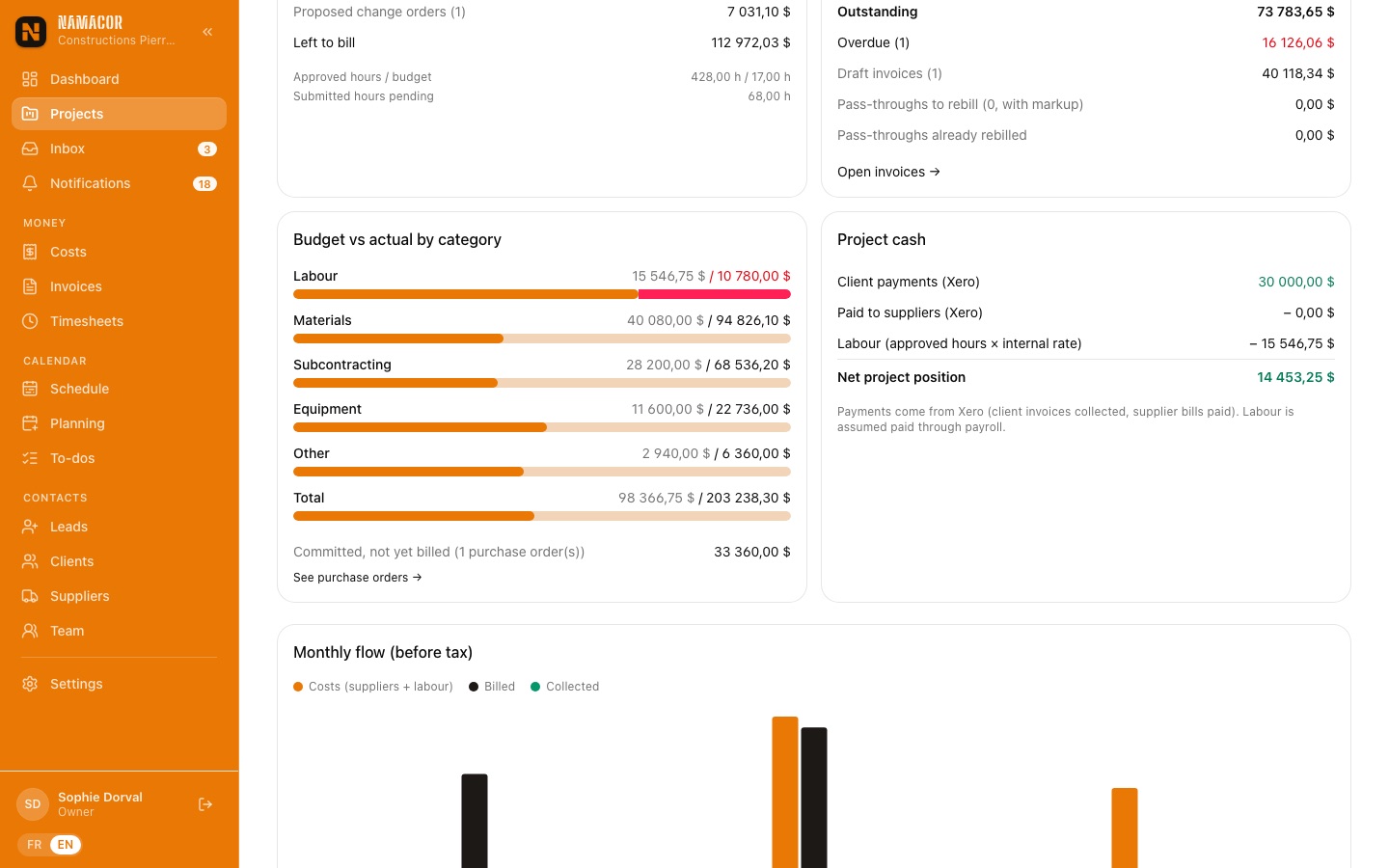
The Finances tab computes: revised contract (accepted quote + change orders), costs to date, billed, collected (Xero), margin to date and projected margin. The watch list flags what deserves your attention.
Every dollar spent, on the right projectCosts
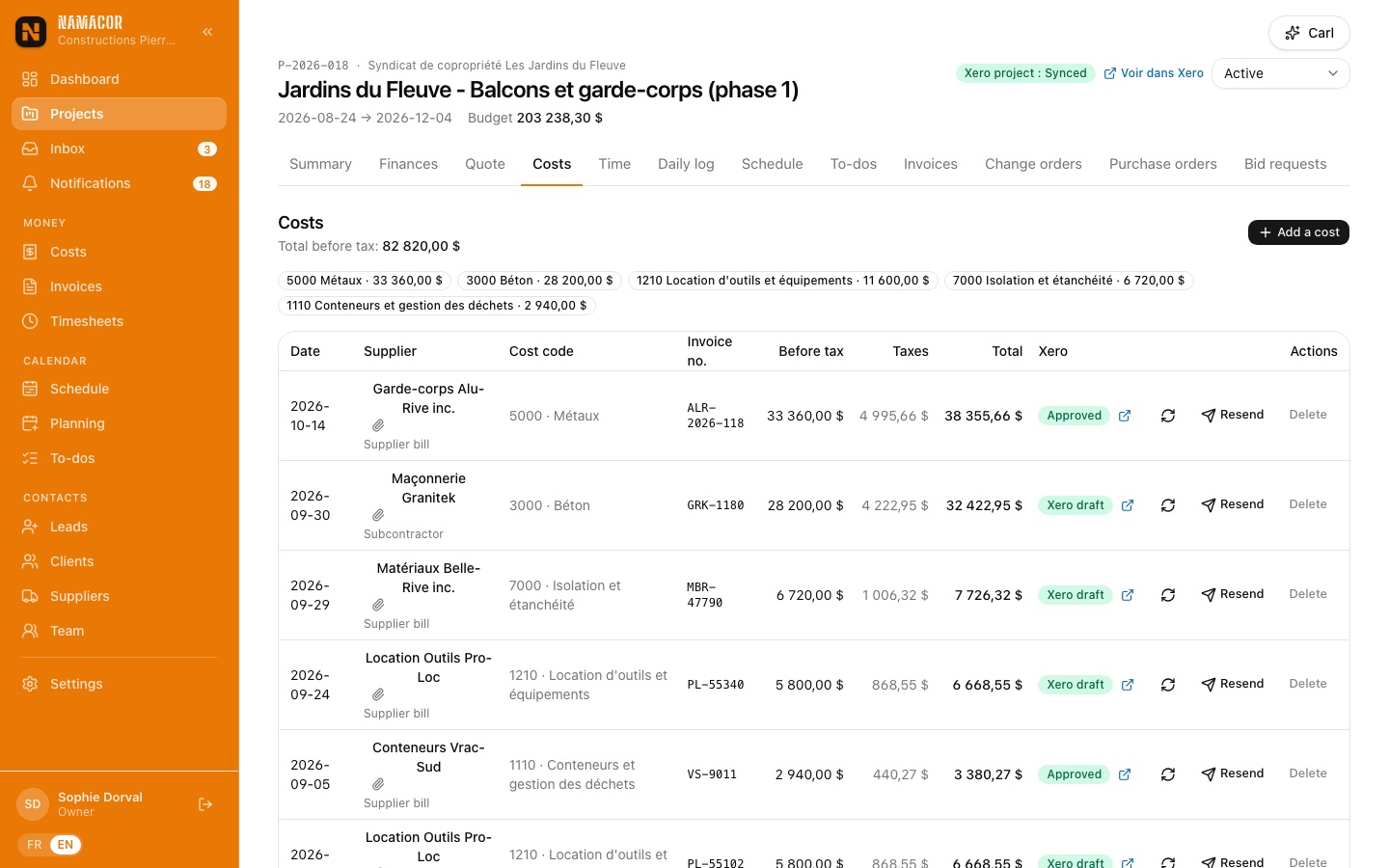
A cost is a supplier bill or receipt, always tied to a project and a cost code, with its receipt. The Costs menu lists them all, filtered by project and Xero status, with a direct link to the supplier bill in Xero.
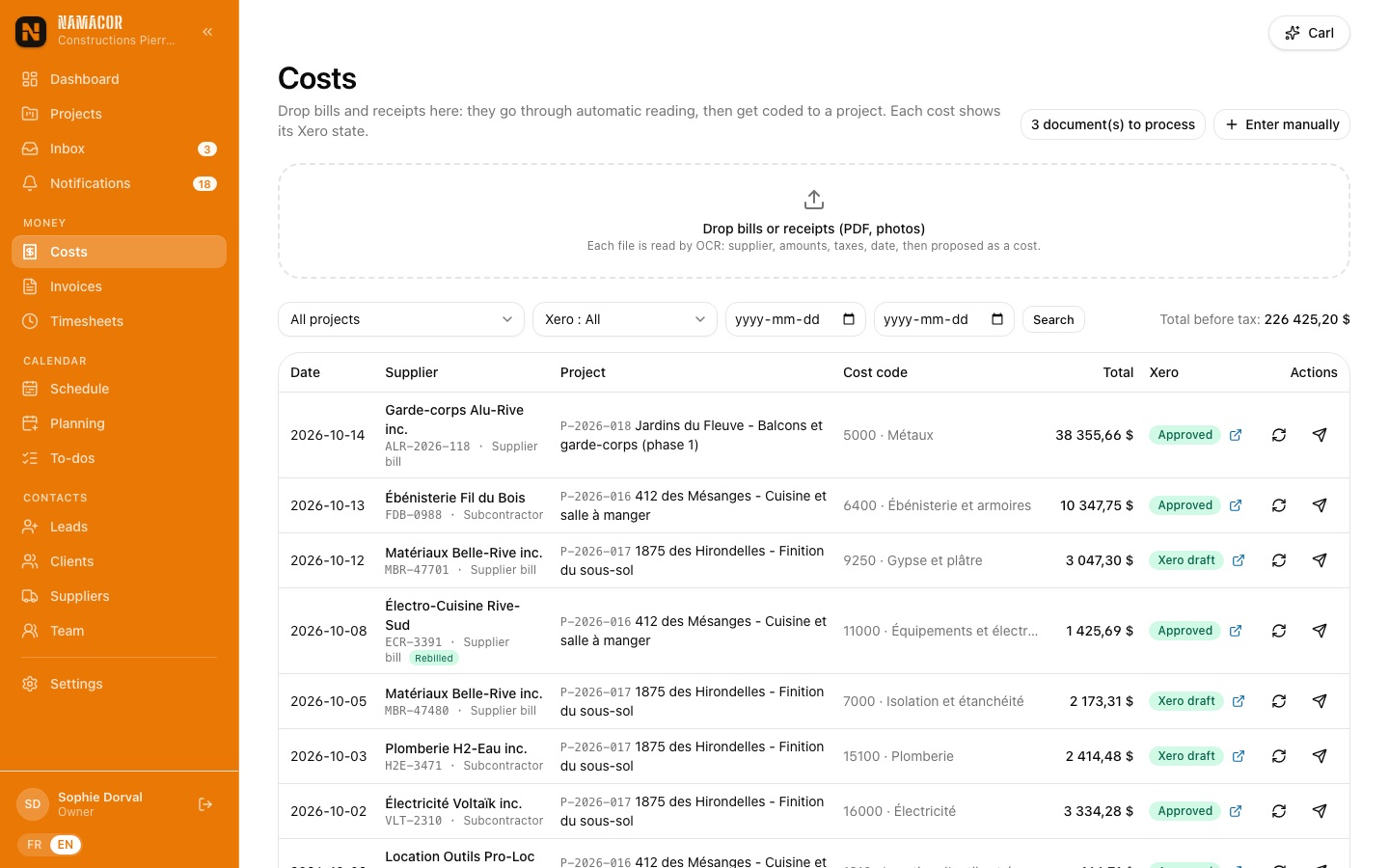
- Enter manually: project, cost code, supplier, purchase order, number, dates, subtotal (GST and QST calculated), receipt photo or PDF.
- A return or refund is entered as a negative amount: it goes to Xero as a supplier credit note.
- A supplier entered for the first time is added to the directory automatically.
No more bill entryInbox and automatic reading
Each company has a receiving address (your-company@factures.namacor.ca, in Settings › Documents). Forward bills and receipts to it, or give it to your suppliers. Each PDF or photo is read by AI: supplier, number, dates, subtotal, GST, QST, total, lines, plus the suggested project and cost code.
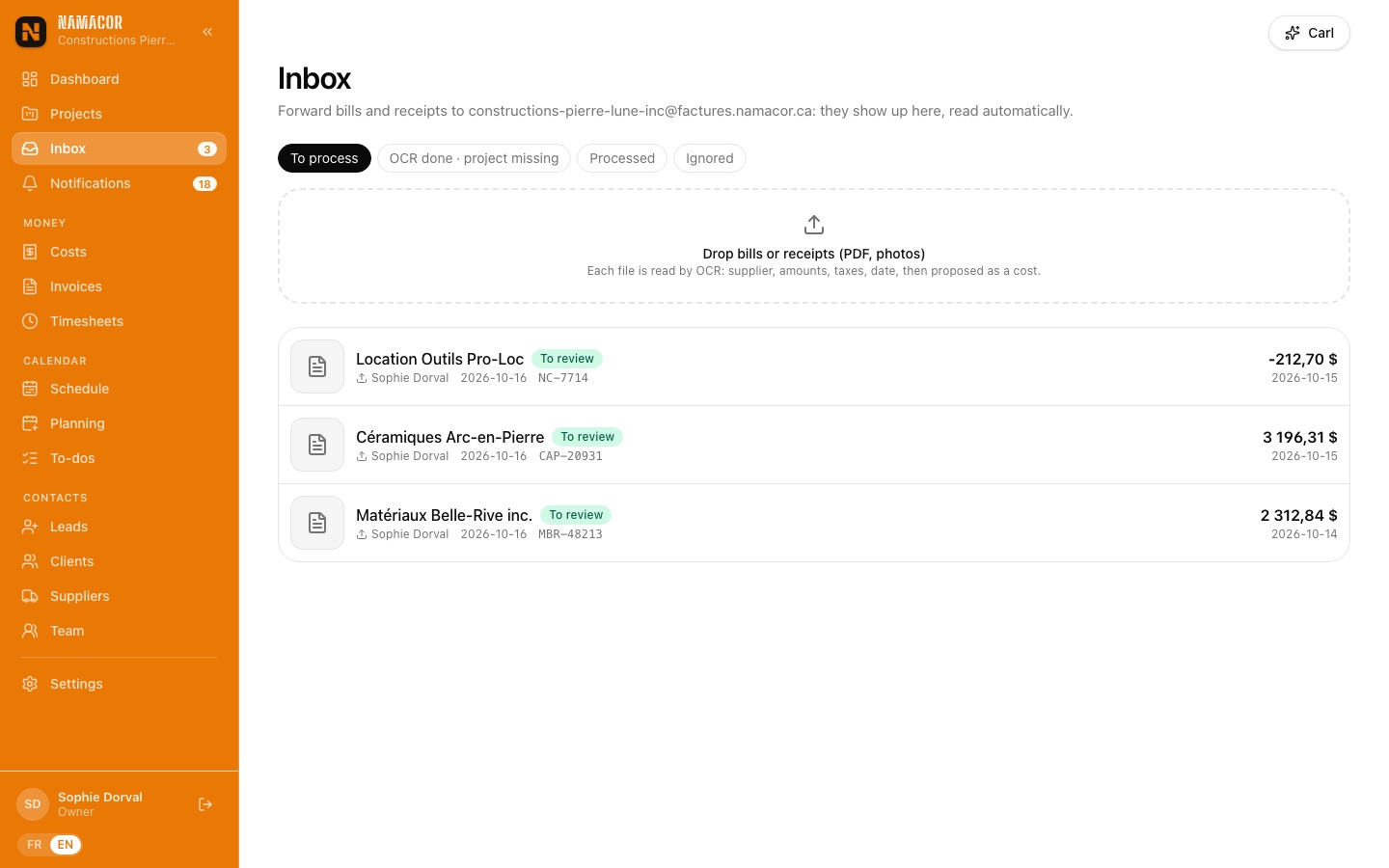
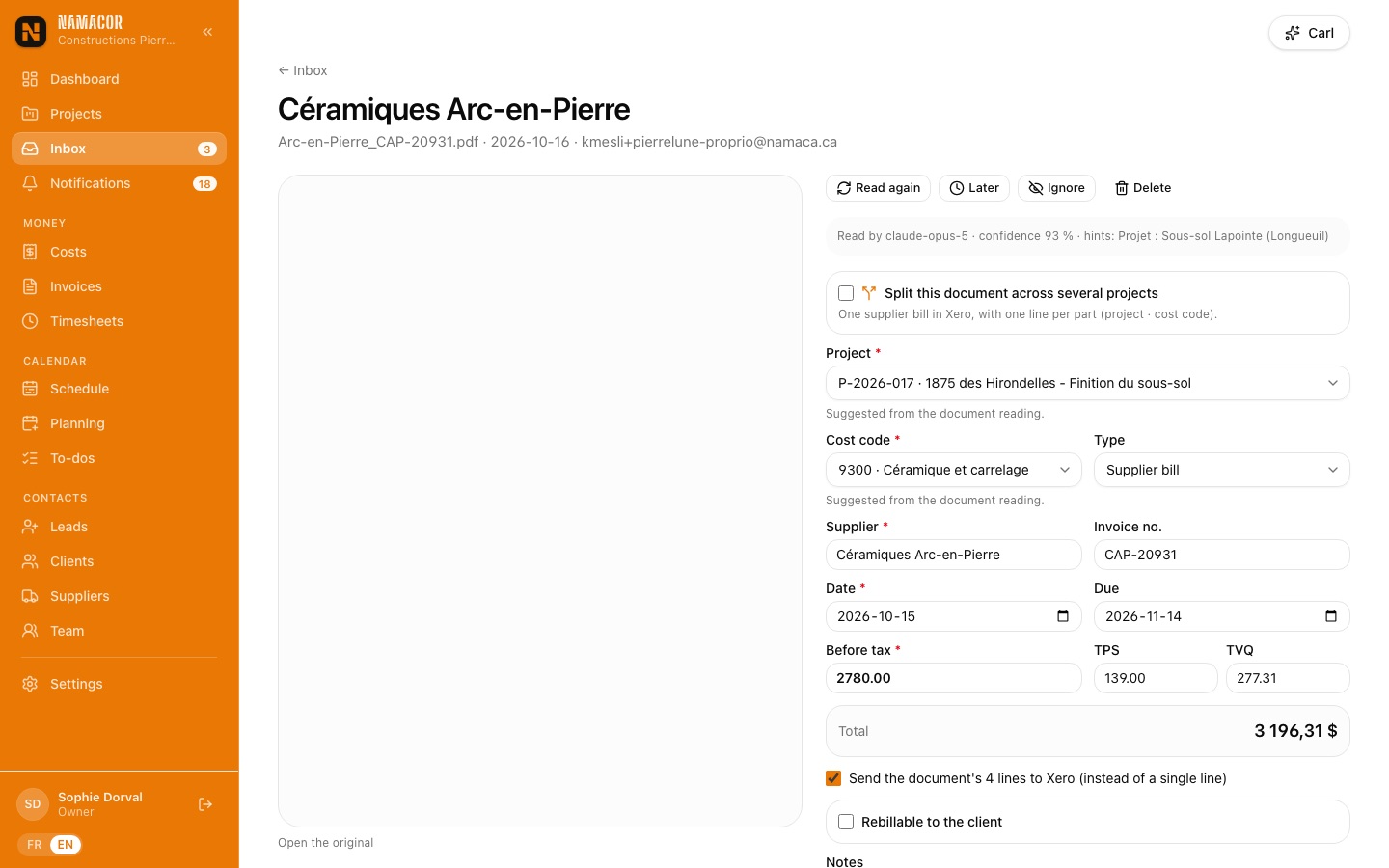
- Open a document to review. The form is prefilled; a "possible duplicate" banner appears if the same bill already exists.
- Fix anything needed, then Create the cost. The file becomes the cost's receipt and the cost goes to Xero.
- Not sure of the project yet? Later sends it to the "OCR done · project missing" tab, where quick coding assigns project and code in a row.
- One bill for several jobs? Tick Split this document across several projects: by amounts or by document line. Xero receives a single supplier bill with one line per project.
Clean books without double entryXero
Everything your accountant needs goes to Xero, correctly coded:
| In NamaCor | In Xero |
|---|---|
| Active project | Xero Projects project, "Project" tracking option, one task per labour code |
| Approved hours | Time entry in the Xero project |
| Cost (supplier bill) | Supplier bill with expense account, project tracking and attached receipt |
| Negative cost | Supplier credit note |
| Issued invoice | Client invoice with PDF and rebilled receipts attached |
| Payment entered in Xero | Read back by NamaCor (continuously and nightly): Paid, Partly paid |
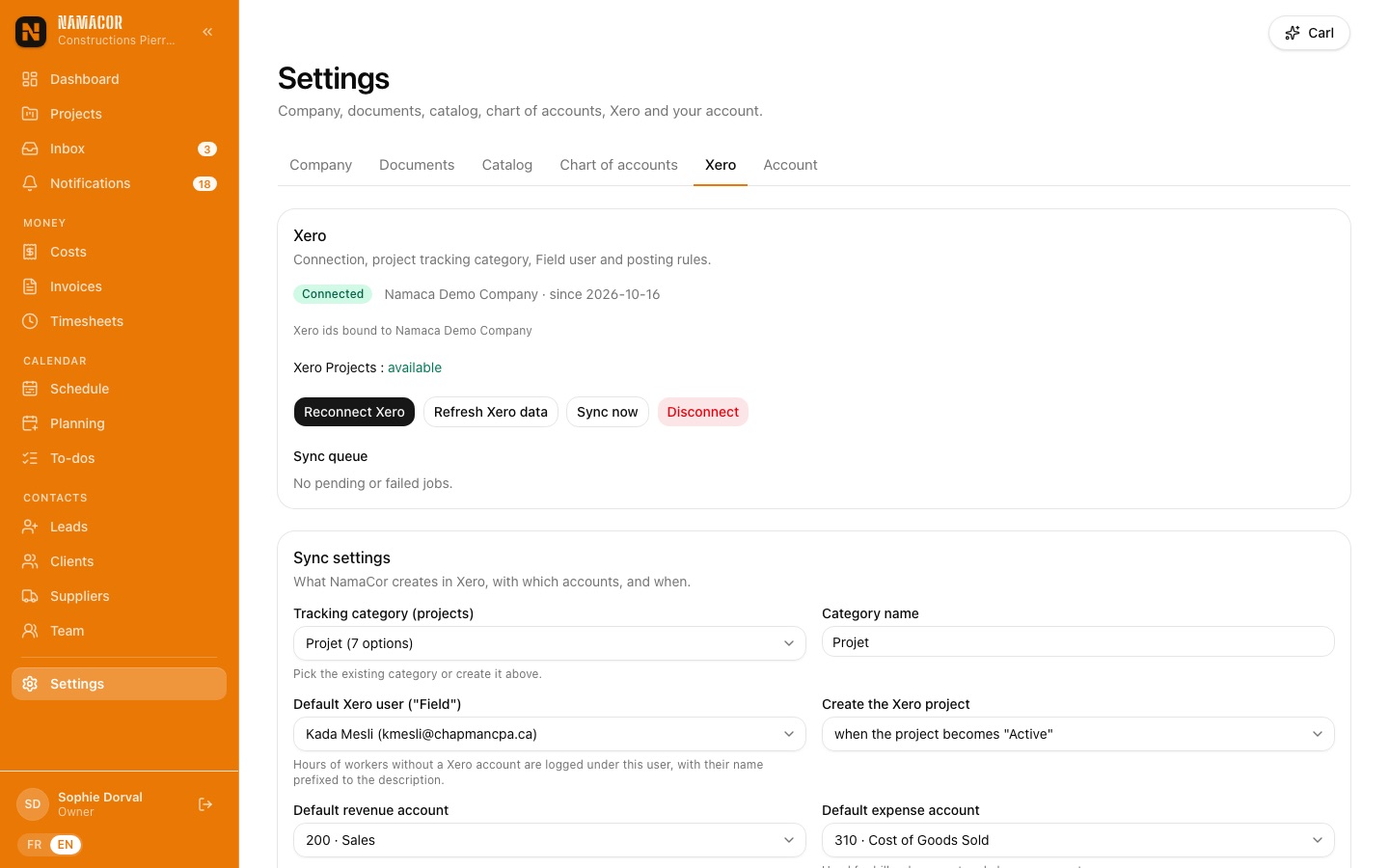
- Settings › Xero › Connect Xero, then authorise your organisation.
- Confirm the organisation (name, short code, Xero Projects available): nothing is sent until the owner confirms.
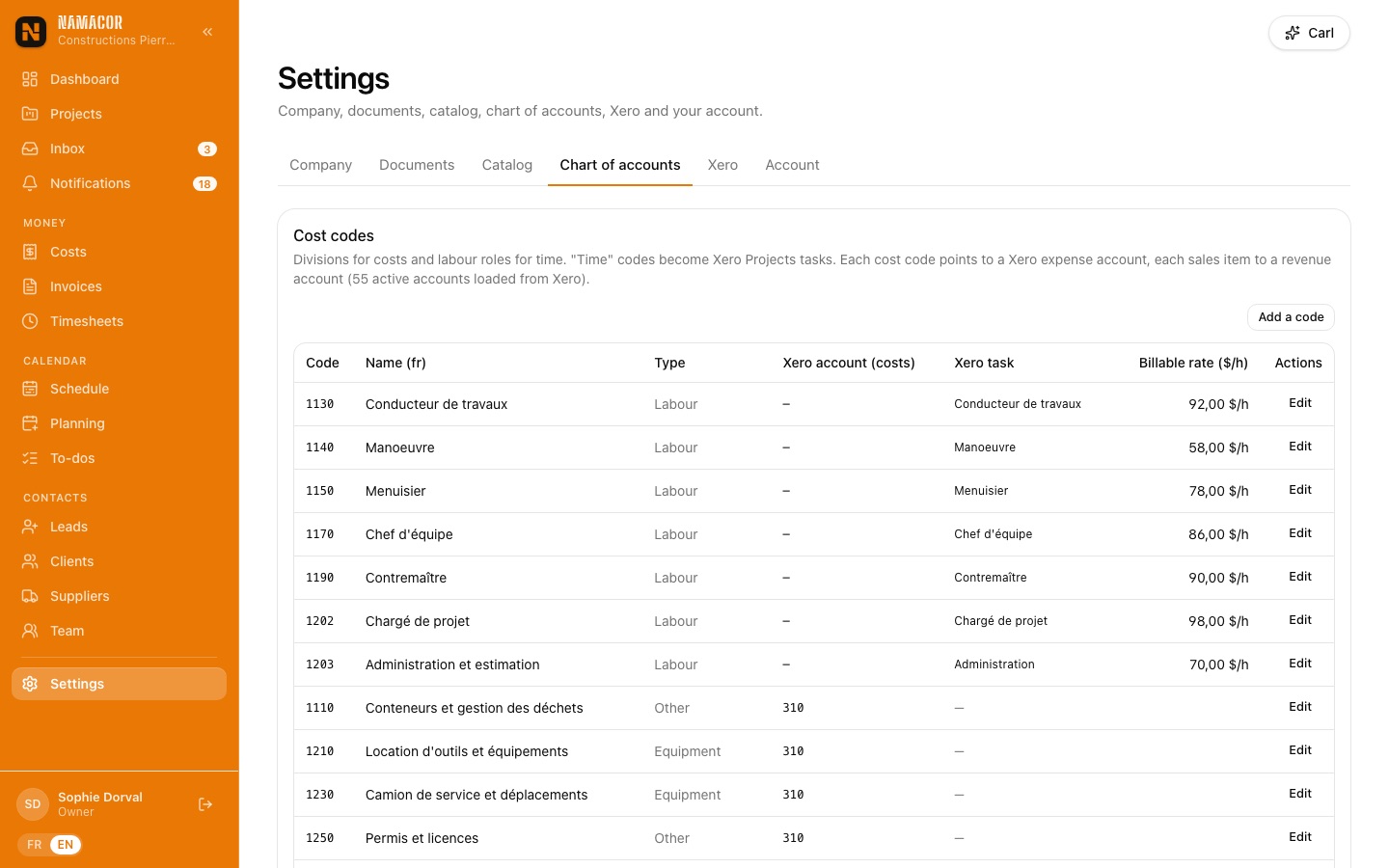
- In Settings › Chart of accounts, map each cost code to an expense account and each sales item to a revenue account.
- Choose the "Project" tracking category, tax codes, the posting status for invoices (draft or approved) and when Xero projects are created.
Keep the client in the loop
Extras are approved before they are built, finish choices are made online against an allowance, and the client follows the project in their portal without calling the office.
No more disputed extrasChange orders
A change order (CO-01, CO-02… per project) is built like a quote, with sections, lines and the calculator. It starts as a draft, invisible to the client. Attach supporting documents (project files, supplier bills): they follow the PDF sent to the client.
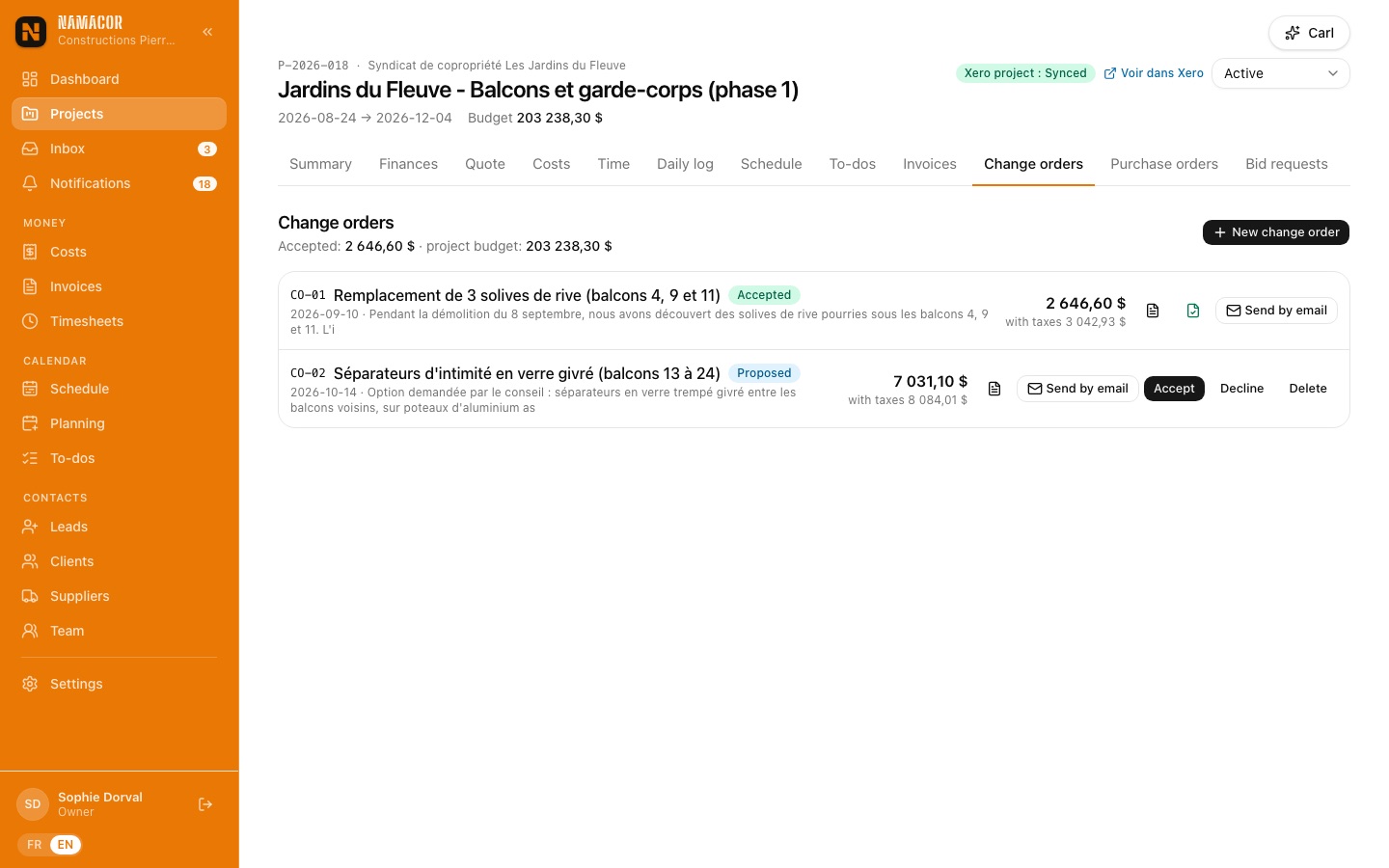
- Change orders tab › New change order, then Create and detail.
- Explain the work, add the lines (a negative amount makes a credit) and tick the supporting documents.
- Propose to client: they see it in their portal and approve by typing their name, or you click Accept.
- Once accepted, its amount is added to the project's contract and budget (and the Xero project estimate).
Finish choices without the back-and-forthClient selections
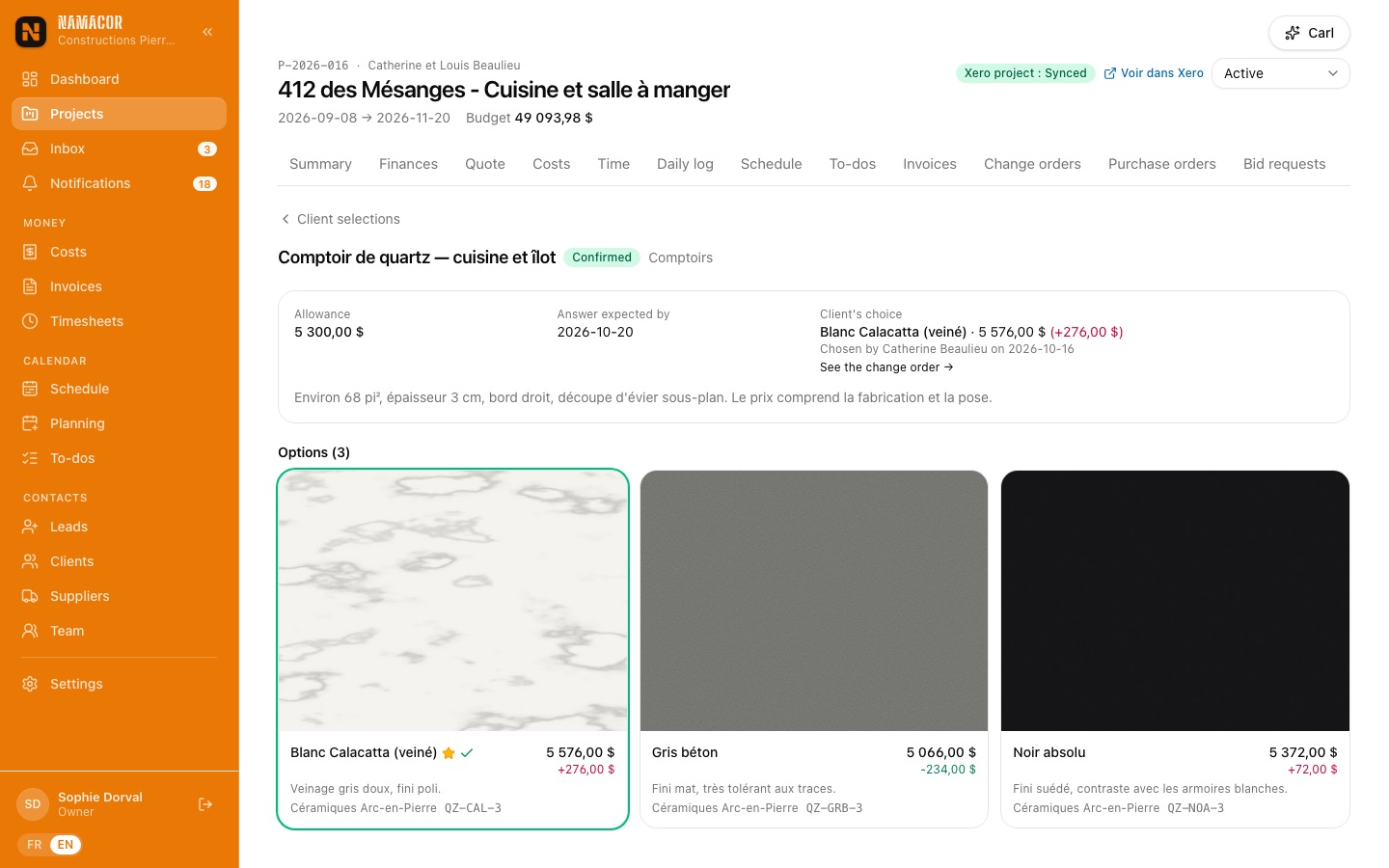
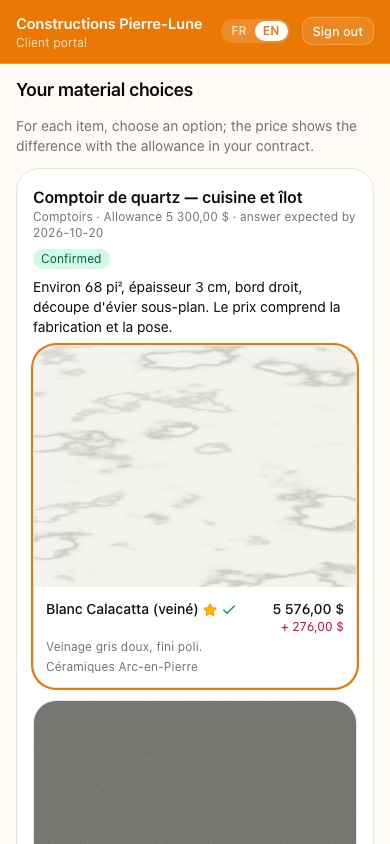
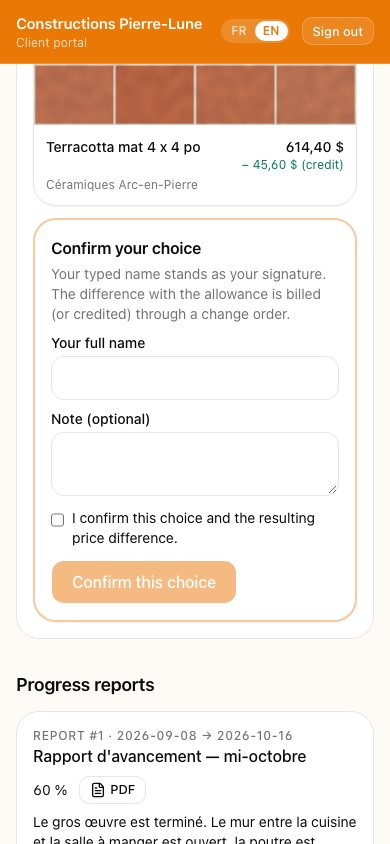
For each item to choose (countertop, tile, faucet), enter the allowance in the contract and offer options with photo, price and supplier. Publish to client sends it to their portal; they choose by typing their name. Confirm the choice locks the selection and creates the change order for the difference with the allowance (a credit if the option costs less).
Fewer calls, more trustClient portal
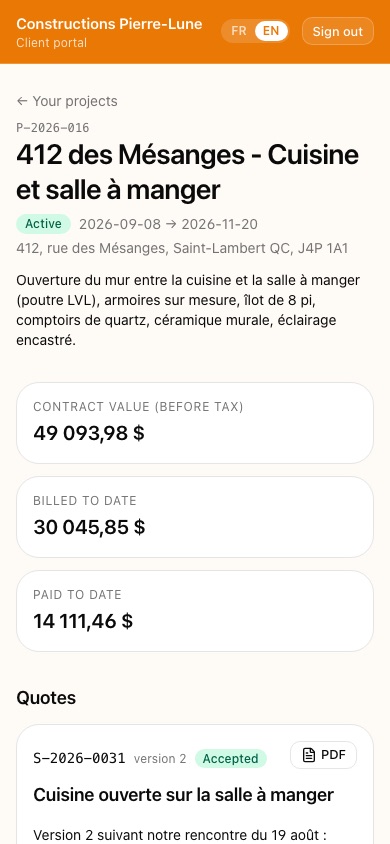
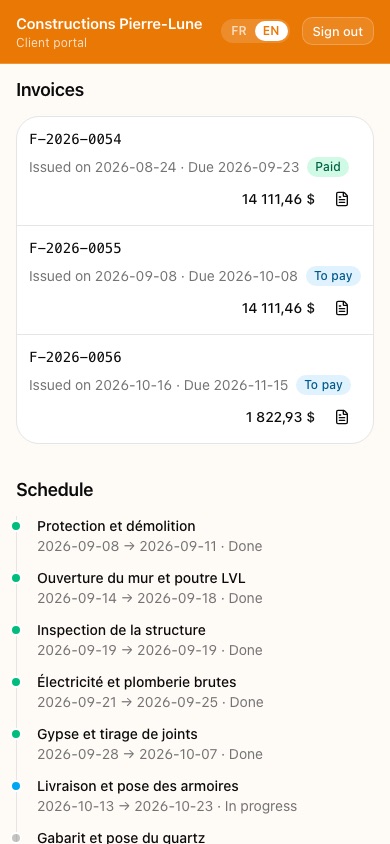
The client signs in with a link or a code sent by email, with no password. They see the projects you make visible (the Client portal switch on the Summary): contract value, billed and paid, quotes, change orders, invoices (paid, to pay), schedule, visible log entries with photos, selections, reports and shared files. Never your costs, hours or margins.
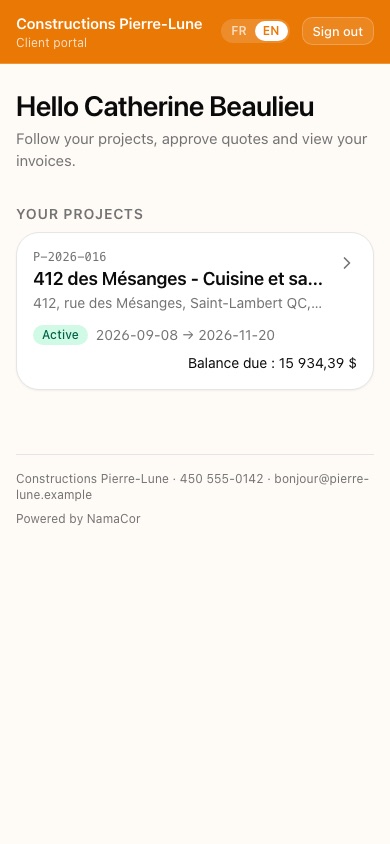
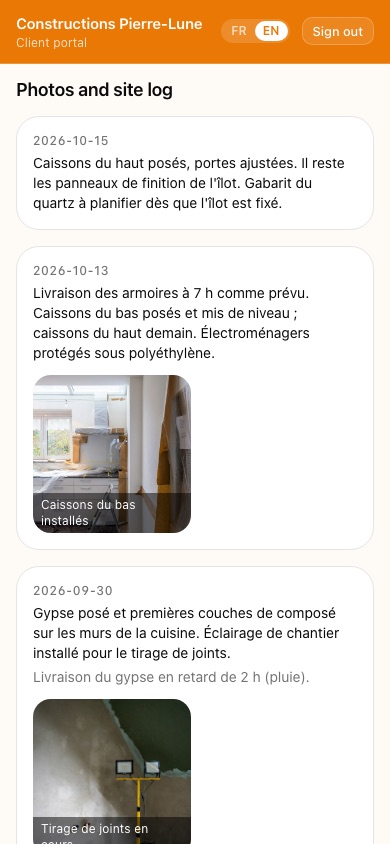
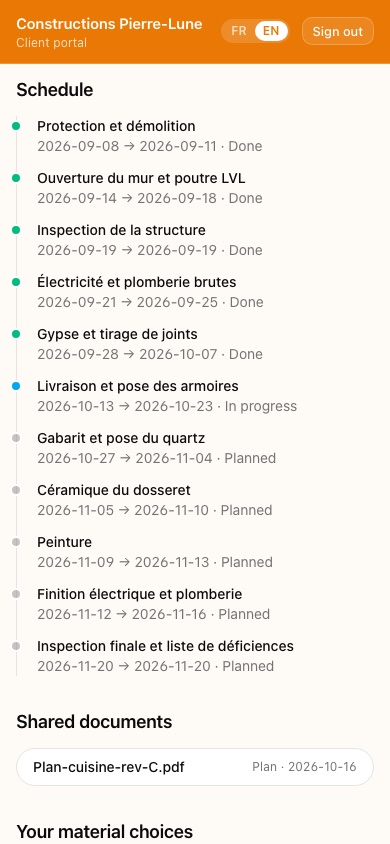
- Client record › Invite the client (email and name). They receive access in their language.
- Project Summary › Client portal switch.
- Every quote, change order or invoice email also contains a public link to the document, valid 180 days; from there the client can request portal access in one click.
A report that writes itselfProgress reports
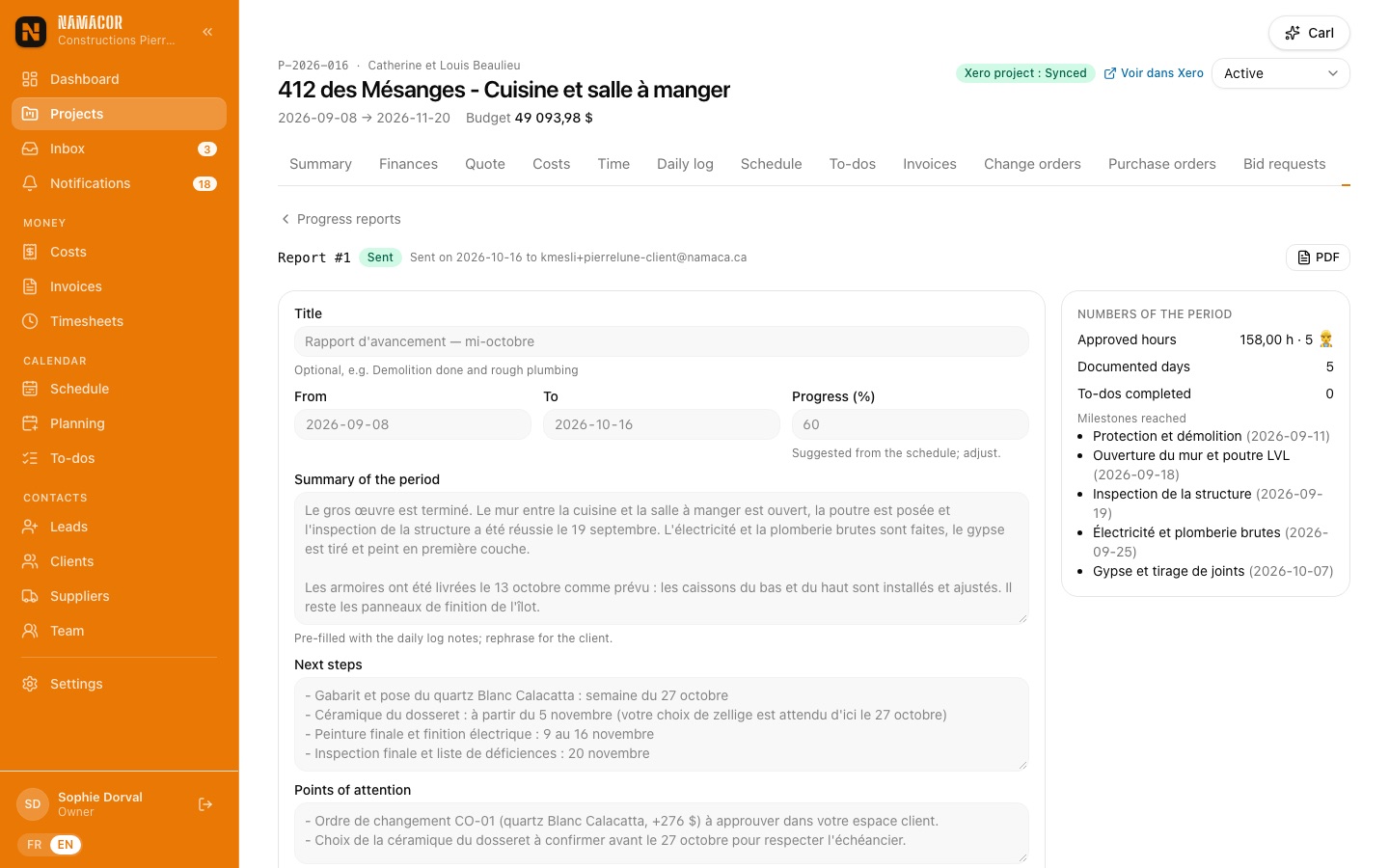
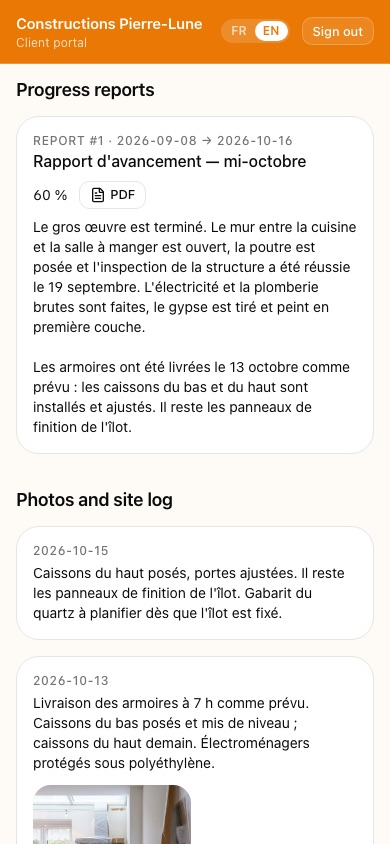
Pick a period: the draft is built from the daily logs, approved hours, steps completed and coming up, finished to-dos and invoices, with the period's photos preselected. After review, Send the report produces the PDF, emails it to the client, files it in the project and publishes it in their portal.
Who did what, and whenEvents and notifications
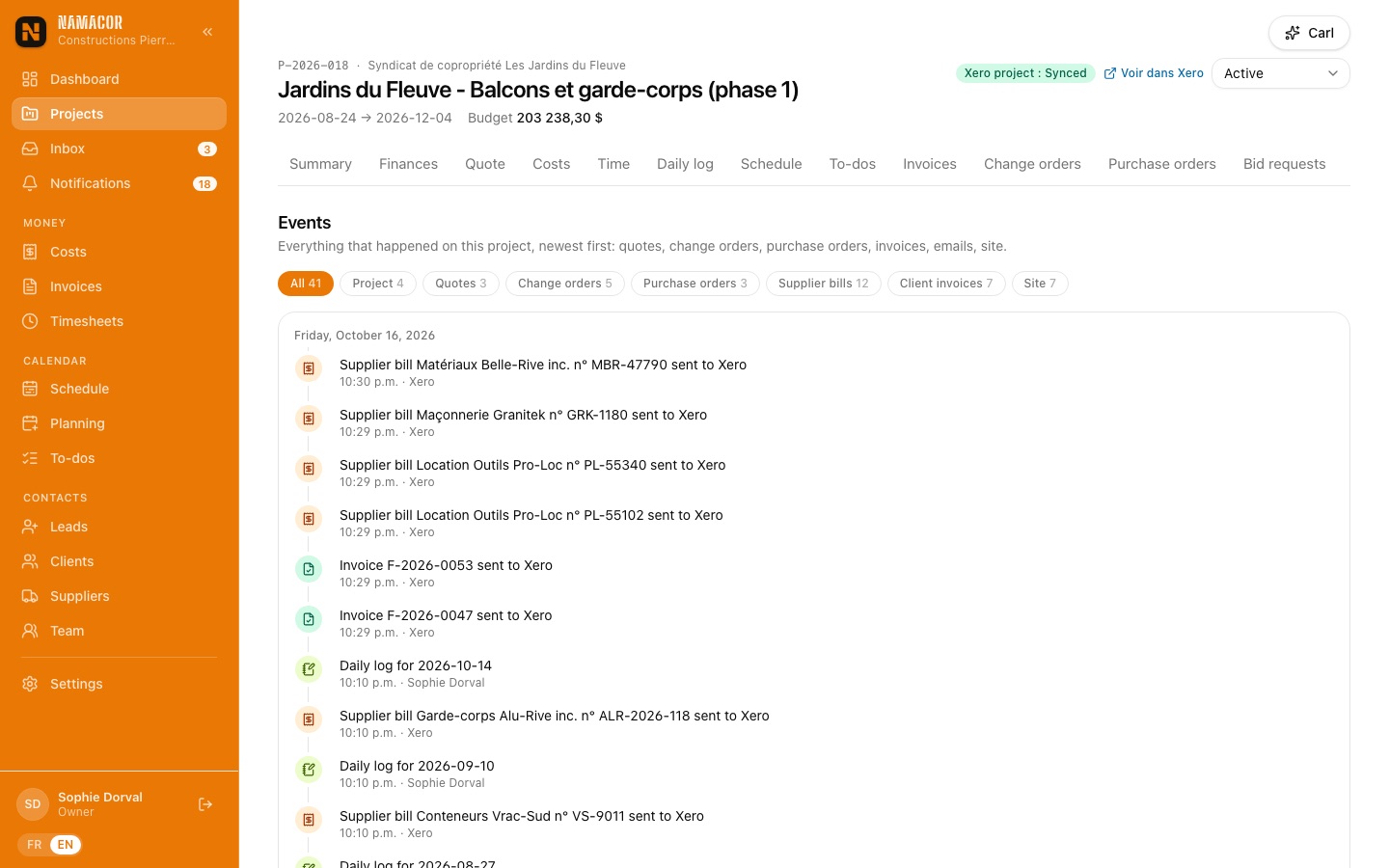
Each project's Events tab is its full history, written by the database itself: quotes, change orders, purchase orders, invoices, payments, emails, logs, files and to-dos, with the author and time. Nothing slips through, whether the action came from the office, the client or Xero.
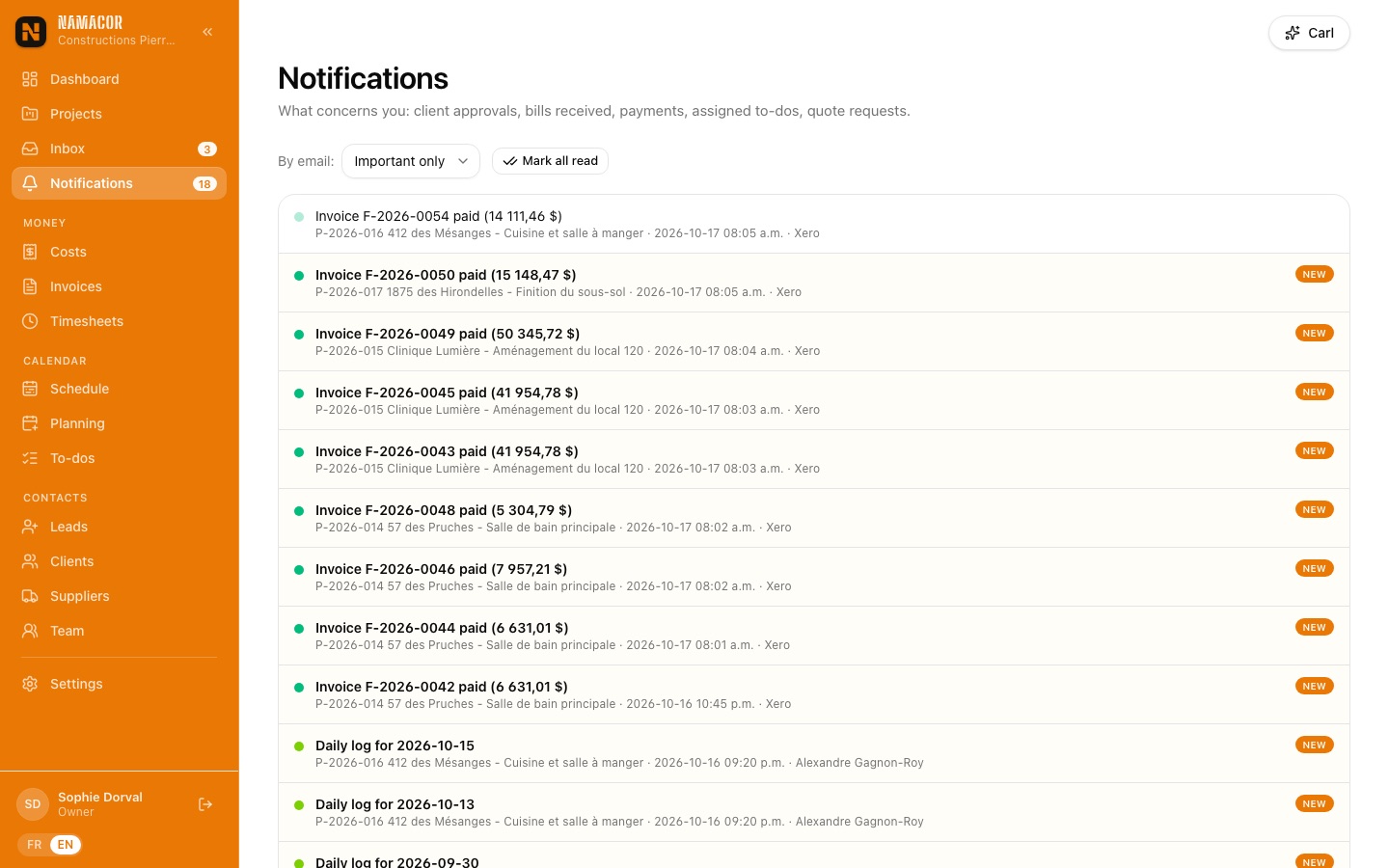
The Notifications page gathers what concerns you: client approvals and refusals, prices received, paid invoices, assigned to-dos, quote requests. Each person chooses their emails: important only, everything or never.
Ask, and Carl looks it up
Carl is NamaCor's assistant for the office. It answers with your real data: a project's finances, budget versus costs by code, open invoices, schedule, hours, suppliers and their licences, Xero status. It also drafts emails and quote text, and can create a to-do or a draft change order.
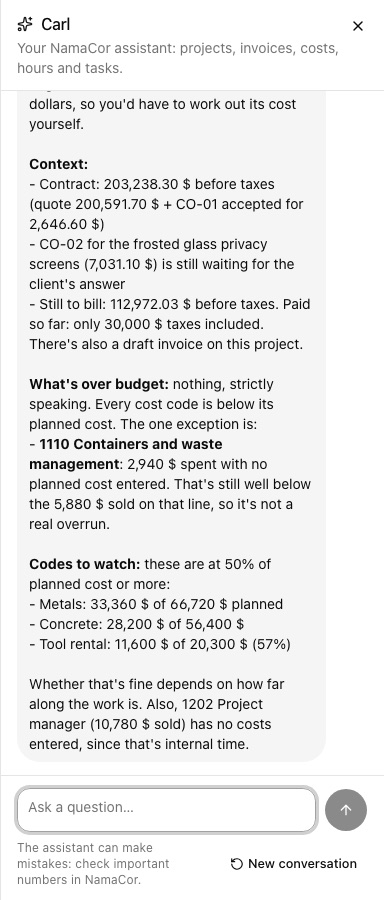
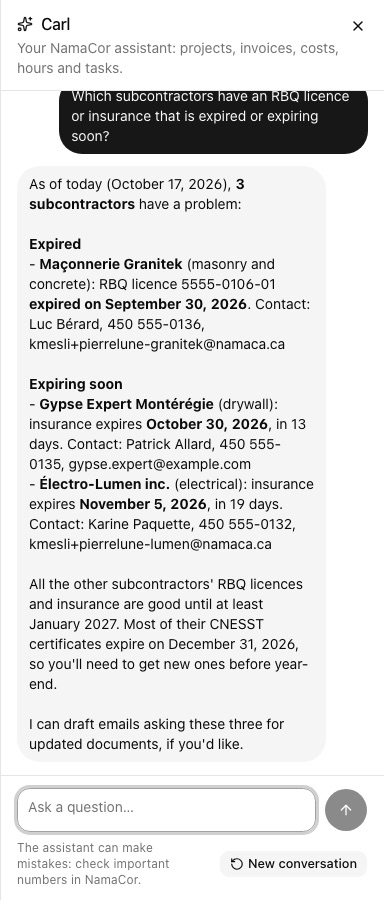
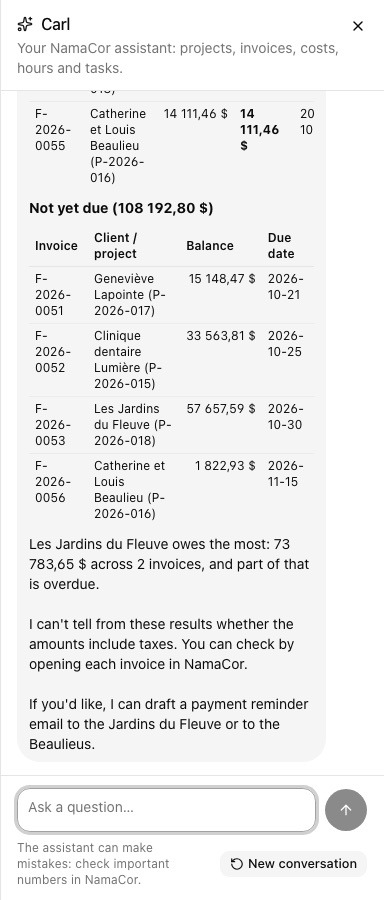
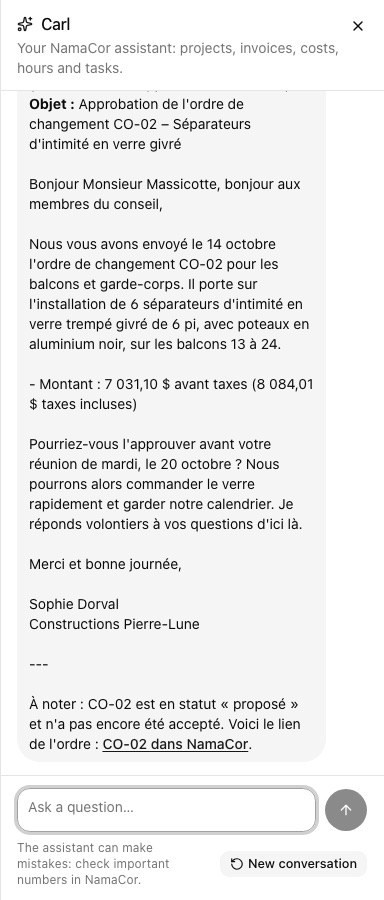
- Open Carl with the button at the top right of every page; the answer appears in a side panel, with links to the relevant screens.
- Carl only sees what your role allows, in your company.
- It sends nothing itself: it drafts, you copy. Its only writes are a to-do or a draft change order, when you ask.
- It also answers "how do I…" questions about NamaCor.
Settings, team and suppliers
Set once, used everywhere: your company details, taxes and terms, chart of accounts, rates, and your subcontractor directory with their licences and insurance.
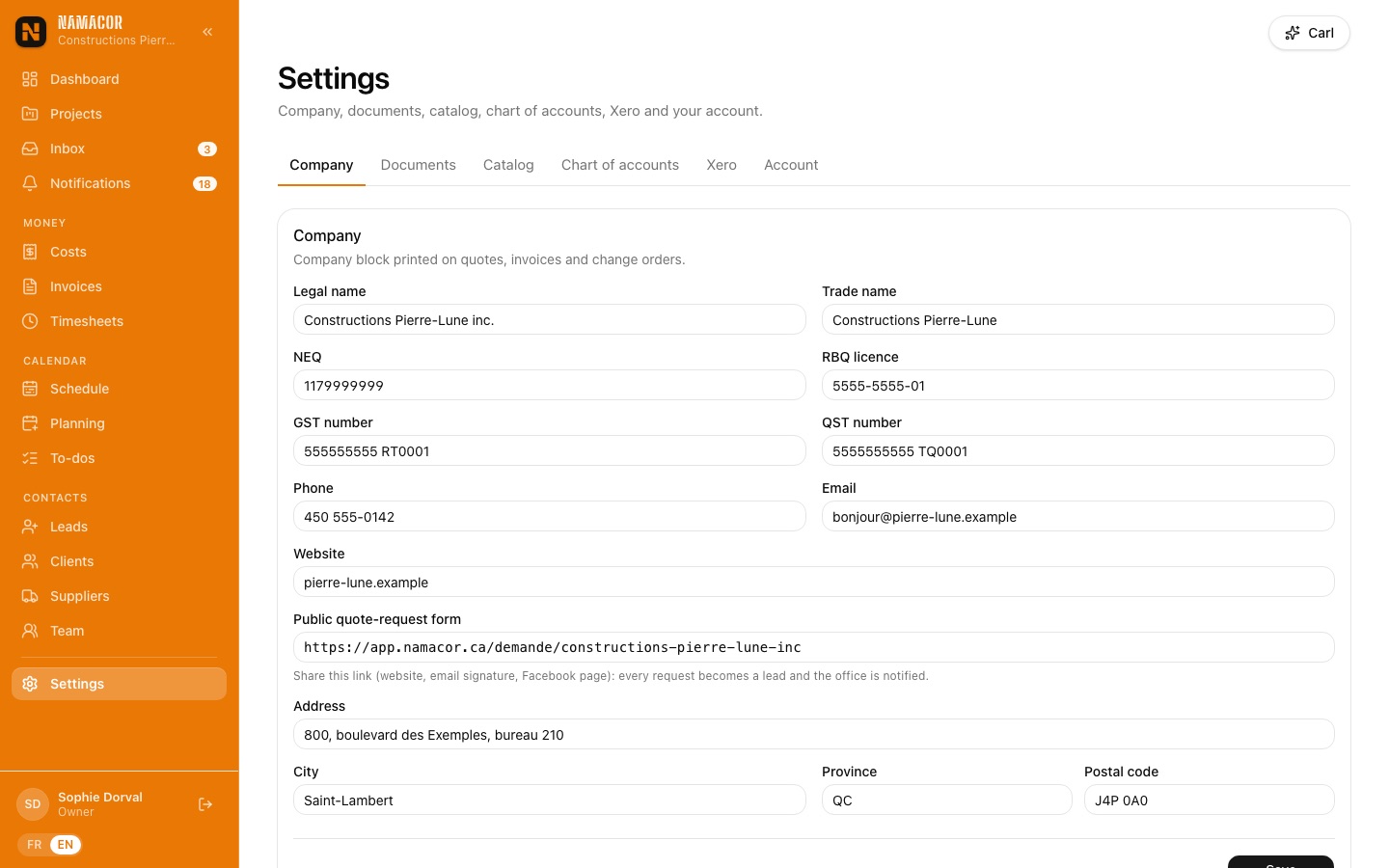
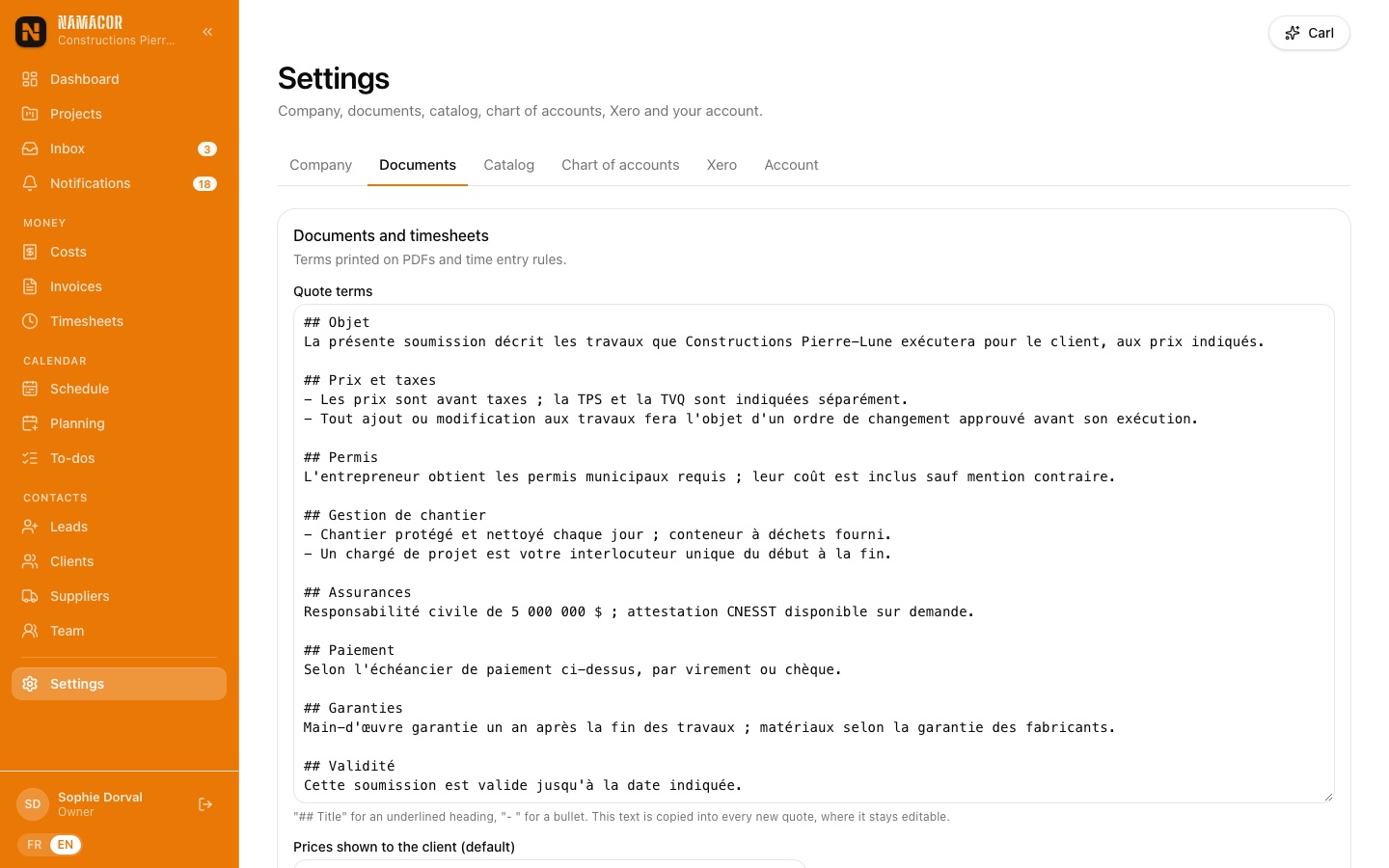
Settings
| Tab | What you set there |
|---|---|
| Company | Legal name, NEQ, RBQ licence, GST and QST numbers, address, public form link, tax rates and codes. |
| Documents | Quote and invoice terms, prices shown to the client, default payment schedule, disbursement markup, holdback, bill receiving address, email sender and reply-to, week start and hour rounding, end-of-day reminder, terms templates, numbering. |
| Catalog | Price catalog, units of measure, quote templates. |
| Chart of accounts | Cost codes (type, Xero expense account, Xero task, billable rate) and sales items (revenue account, taxable). |
| Xero | Connection, organisation confirmation, tracking category, posting statuses, sync queue. |
| Account | Your language and, if you wish, a password (sign-in by code stays available). Email preferences are set at the top of the Notifications page. |
Team and roles
| Role | Can |
|---|---|
| Owner | Everything: users, Xero connection, internal rates, settings. |
| Office | Clients, projects, quotes, costs, invoices, schedule, hour approval, sync. |
| Field | On their projects: their hours, clock-in, the log, costs with receipt, the schedule. Never a dollar amount. |
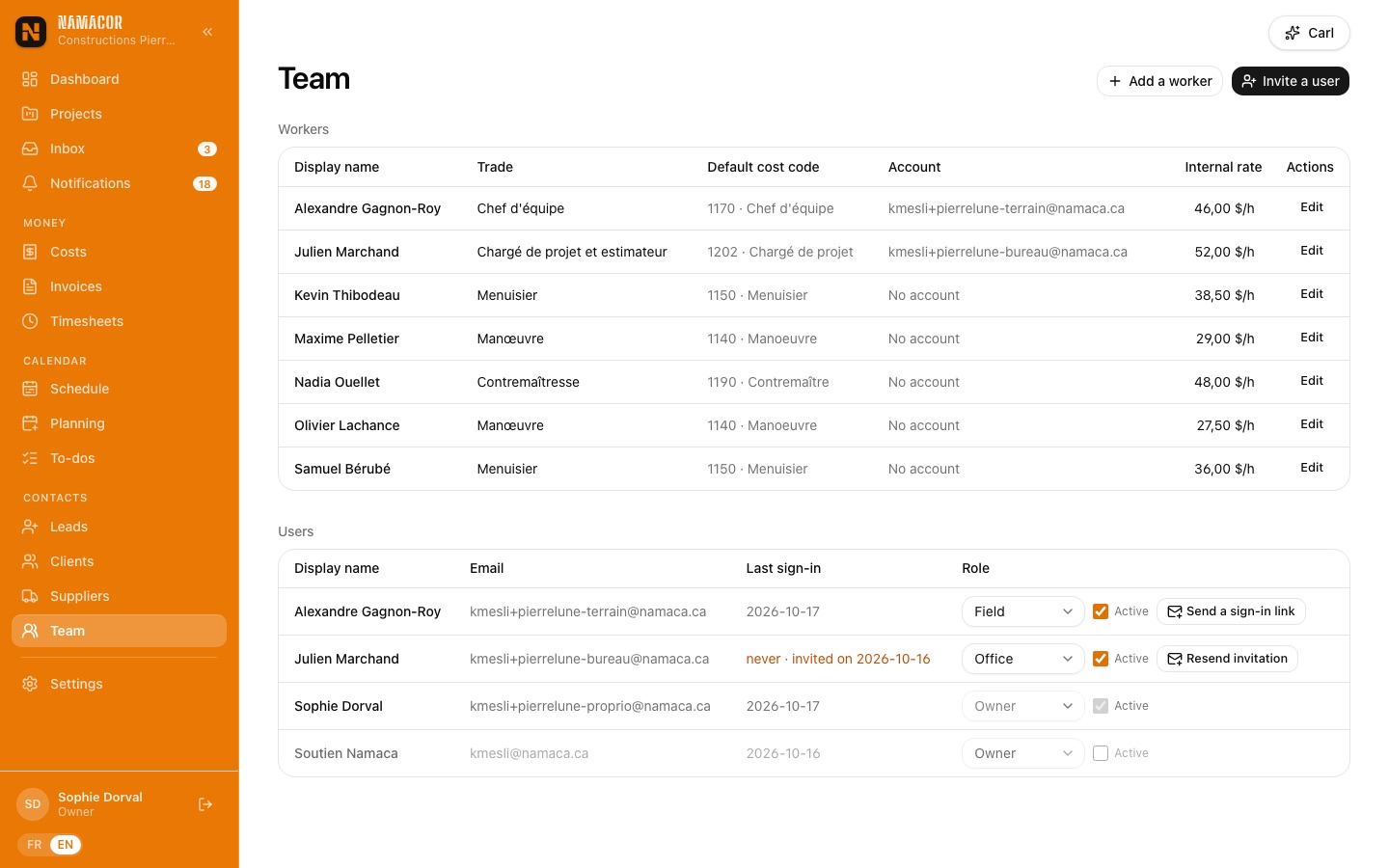
- Add a worker: a worker doesn't need an account to have hours entered.
- Invite a user: an invitation email; the person then signs in by code.
- On a project's Team tab, a billed rate specific to a worker can replace the cost code's rate.
Suppliers and subcontractors
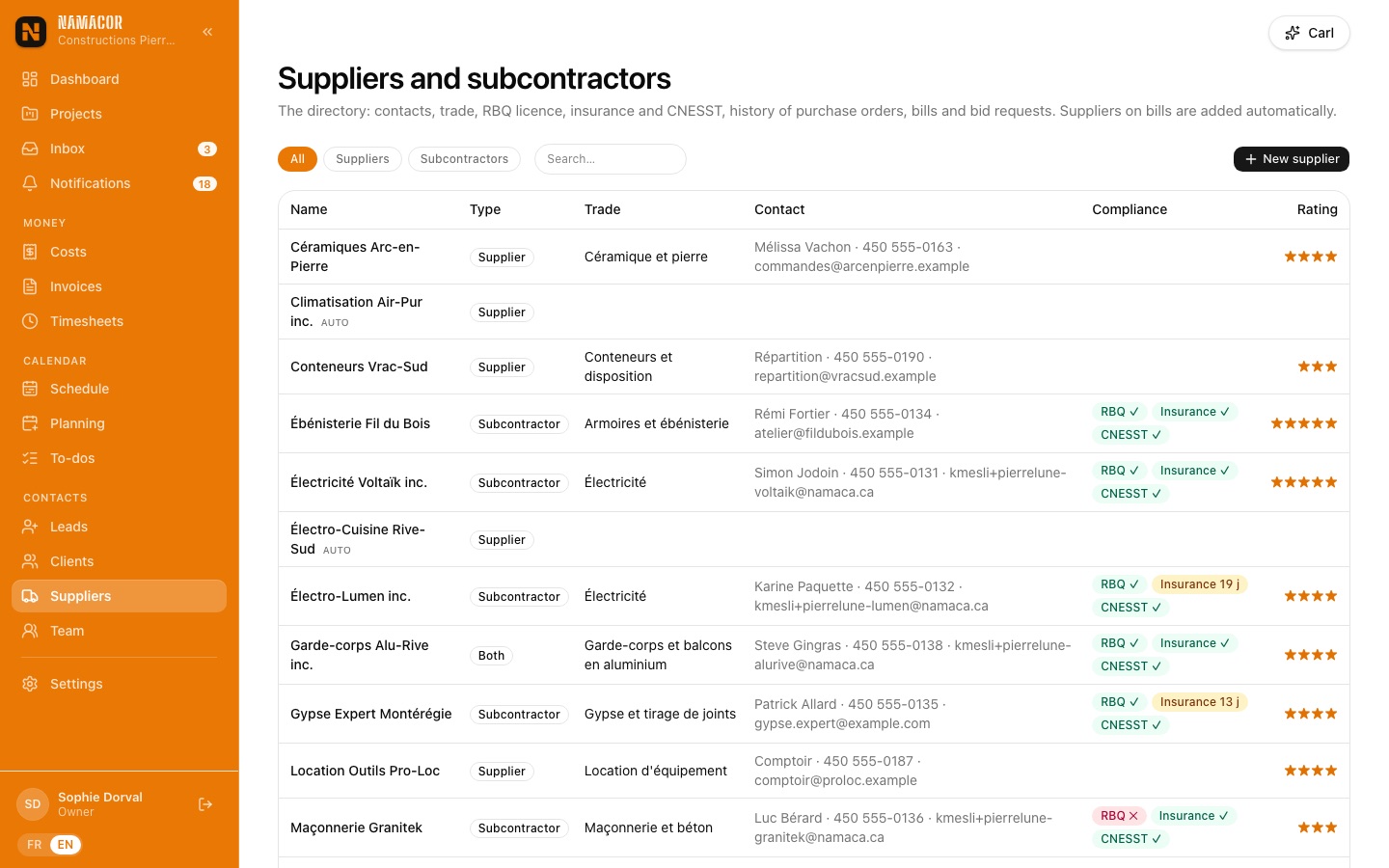
The directory keeps type, trade, contact, RBQ licence, insurance and CNESST certificate with their dates: red badge if expired, amber within 30 days. The record shows the history of purchase orders, bills received and bid requests.
Constructions Pierre-Lune inc., its employees, clients, suppliers, addresses, (555) numbers and documents are fictitious, created for this demonstration. Any resemblance to a real company or person is coincidental. NamaCor is a product of Namaca Services Inc., Montréal.